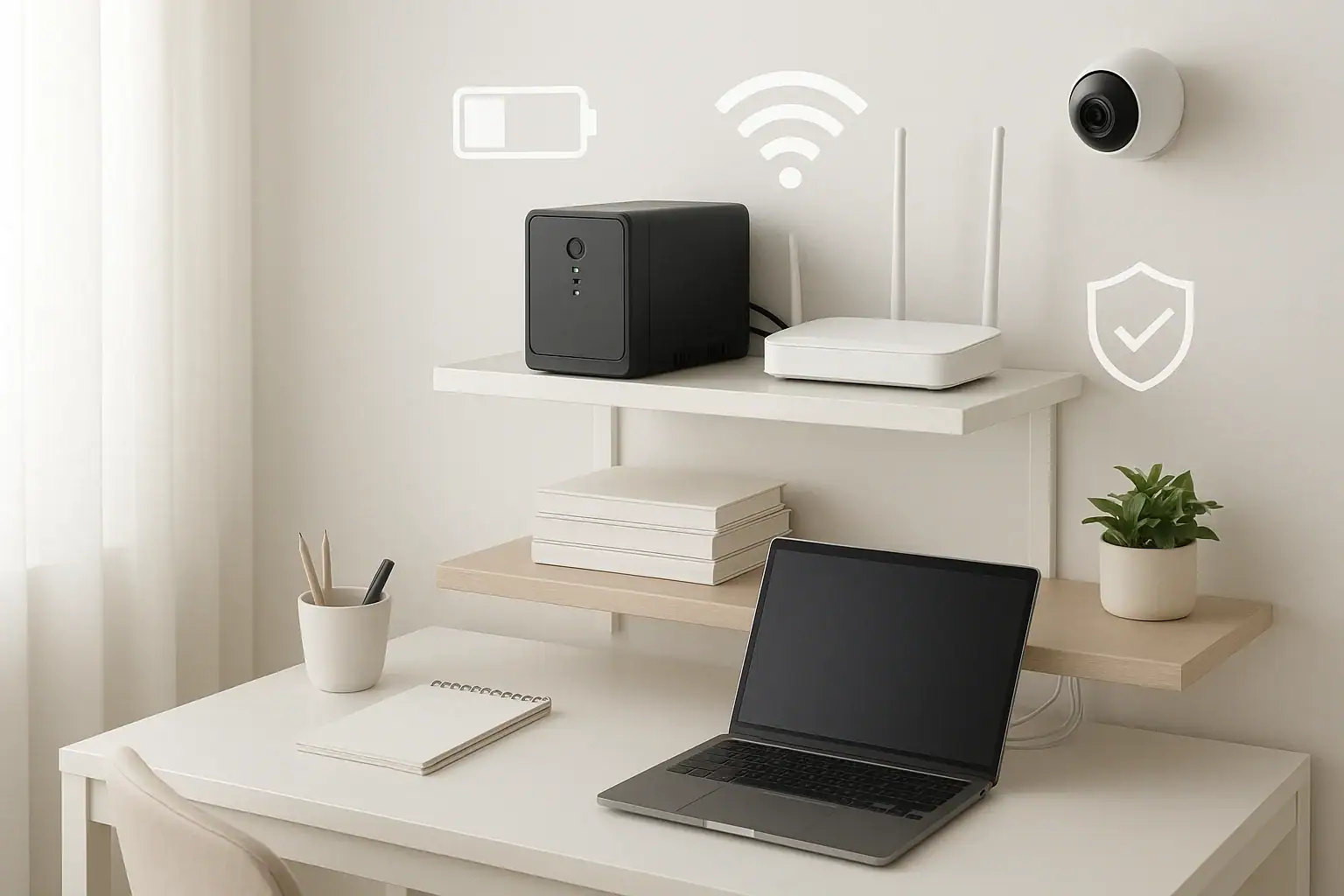
When the power goes out, most people think about lights and refrigerators first. But in a connected home, losing your internet and security system can be just as stressful. If your WiFi router, modem, cameras, or smart locks shut down during an outage, you lose both convenience and peace of mind. The good news is that you do not need a whole-house generator to stay connected. A simple uninterruptible power supply (UPS) can keep your essential network and security devices running for hours, often for less than the cost of a monthly internet bill.
On this page(click to collapse)
- Why Backup Power for WiFi and Security Matters
- What Is a UPS and How Does It Work?
- Step 1: Decide What You Want to Keep Online
- Step 2: Estimate How Much Power You Need
- Step 3: Decide How Long You Want Backup Power
- Step 4: Choose the Right Type of UPS
- Step 5: Plan Your Physical Setup
- Step 6: Connect and Configure Your UPS
- Advanced Options for Longer Backup
- Safety and Maintenance Tips
- Budgeting for a Simple Backup System
- Simple Example Setups
- Frequently Asked Questions
- Putting It All Together
- Related guides
This guide walks you through how to choose and set up backup power for WiFi and home security in clear, simple steps. You will learn what a UPS is, how much backup time you really need, how to size it correctly, and how to connect your devices safely. By the end, you will be able to build a small, reliable backup system that keeps your home online and protected even when the lights are off.
Why Backup Power for WiFi and Security Matters
Power outages can happen for many reasons: storms, grid failures, construction work, or even a tripped breaker. During those outages, your internet and security equipment are often the first things to shut down. That can create several problems:
- No access to security cameras: You cannot view live feeds or receive motion alerts.
- Smart locks and sensors may go offline: Remote access and notifications can stop working.
- No WiFi for phones and laptops: If cell coverage is weak, you may have trouble getting information or contacting others.
- Alarm monitoring interruptions: Some systems depend on your internet connection to send alerts.
A small UPS can bridge these gaps by providing temporary power to your modem, router, and key security devices. This helps you stay informed, maintain remote access, and keep basic monitoring in place until utility power returns.
What Is a UPS and How Does It Work?
A UPS (uninterruptible power supply) is a device that provides short-term battery power to your electronics when the main power goes out. It also helps smooth out power fluctuations that can damage sensitive equipment.
In simple terms, a UPS:
- Plugs into a wall outlet
- Has a built-in battery and electronics that charge the battery
- Provides battery power to connected devices when it detects a power loss
For home WiFi and security, you typically use a small UPS designed for networking and computer equipment. These units are compact, quiet, and simple to set up.
Key UPS Features to Know
When shopping for a UPS, you will see several common terms:
- VA (Volt-Amps): A measure of the UPS capacity. Higher VA generally means it can support more devices or run them longer.
- Watts: The actual power the UPS can deliver. For most home users, watts is the more useful number.
- Runtime: How long the UPS can power your devices during an outage, usually listed for a specific load.
- Battery type: Most home UPS units use sealed lead-acid batteries; some newer ones use lithium batteries for longer life and lower weight.
- Surge protection: Many UPS units also protect against voltage spikes.
Step 1: Decide What You Want to Keep Online
You do not need to power everything in your home. Focusing on a few critical devices keeps your UPS smaller, simpler, and more affordable. Start by listing what truly matters during an outage.
Typical Devices to Put on Backup Power
- Internet modem (cable or fiber terminal)
- WiFi router or mesh base station
- Primary smart home hub, if separate from the router
- Security system base station or control panel (if it relies on AC power)
- Network video recorder or main camera hub (if you use one)
- Critical wired cameras or doorbell camera power supply
Many smart sensors, locks, and some cameras have their own internal batteries. In that case, you only need to keep the hub and network equipment powered so they can continue to communicate and send alerts.
Devices You Usually Do Not Need on the UPS
- Televisions and game consoles
- Desktop computers (unless you need them for work during outages)
- Printers, speakers, and entertainment equipment
- Large appliances like refrigerators or microwaves
Keeping non-essential devices off the UPS extends runtime for your critical security and networking gear.
Step 2: Estimate How Much Power You Need
To choose the right UPS, you need a rough idea of how much power your devices use. This is easier than it sounds.
How to Find Power Usage
Check each device you plan to connect to the UPS and look for a label or power adapter. You will usually see one of these:
- Watts (W): For example, 12 W or 24 W
- Volts (V) and Amps (A): For example, 12 V and 1 A
If you only see volts and amps, multiply them to get watts:
Watts = Volts × Amps
Example: A router rated at 12 V and 1 A uses about 12 watts.
Typical Power Use for Common Devices
- Modem: 5–15 W
- WiFi router: 5–20 W
- Smart home hub: 3–10 W
- Security base station: 5–15 W
- Network video recorder: 10–40 W
Add the wattage for each device you want on backup power. That total is your estimated load.
Example setup:
- Modem: 10 W
- Router: 15 W
- Security base station: 10 W
Total load: 35 W
Step 3: Decide How Long You Want Backup Power
Next, think about how long your outages usually last and how much coverage you want.
Common Runtime Goals
- 30–60 minutes: Enough for short outages and to safely shut down devices if needed.
- 2–4 hours: Covers most neighborhood outages from storms or repairs.
- 4–8 hours or more: Helpful in areas with frequent or extended outages.
For many homes, aiming for 2–4 hours of backup power for WiFi and security is a practical starting point.
Matching Runtime to UPS Size
UPS product pages usually show a chart or table listing estimated runtime at different loads. Use your total wattage to find a unit that meets your goal.
As a rough guideline for a small 30–40 W load (modem, router, security hub):
- Small UPS (around 400–600 VA): often 1–2 hours
- Medium UPS (around 700–1000 VA): often 2–4 hours
- Larger home UPS (over 1000 VA): can provide 4+ hours, depending on battery size
These are only estimates; always check the manufacturer’s runtime information.
Step 4: Choose the Right Type of UPS
Not all UPS units are the same. For home WiFi and security, you want something reliable, efficient, and simple.
Common UPS Types
- Standby (offline) UPS: Basic and affordable. Switches to battery when power fails. Usually fine for routers, modems, and most security gear.
- Line-interactive UPS: Adds better voltage regulation and is more efficient. A good choice if your home experiences frequent brownouts or voltage swings.
- Online (double-conversion) UPS: Provides the cleanest power but is more expensive and often overkill for simple home networking.
For most homes, a small standby or line-interactive UPS is more than enough for WiFi and security devices.
Outlet Types and Layout
Look at the back of the UPS:
- Some outlets provide battery backup + surge protection
- Some outlets provide surge protection only
Make sure your modem, router, and security devices are plugged into the battery-backed outlets, not the surge-only ones.
Step 5: Plan Your Physical Setup
A little planning makes your backup system cleaner and more reliable.
Choose a Good Location
- Place the UPS near your modem and router, usually where your internet enters the home.
- Keep it off the floor if your area is prone to minor flooding.
- Allow a few inches of space around it for ventilation.
- Avoid direct sunlight and very hot or damp areas.
Organize Cables
- Use short power cords when possible to reduce clutter.
- Label cables for modem, router, and security base station so you can quickly identify them.
- A small cable tray or ties can keep everything neat and reduce the chance of accidental unplugging.
Step 6: Connect and Configure Your UPS
Once you have your UPS and location ready, setup is straightforward.
Basic Connection Steps
- Plug the UPS into a grounded wall outlet.
- Let it charge for the recommended time (often 8 hours) before relying on it.
- Plug your modem, router, and security base station into the battery-backed outlets.
- Plug any non-critical devices (if needed) into surge-only outlets.
- Turn on the UPS and confirm that all connected devices power up.
Test Your Setup
After everything is connected and charged:
- Unplug the UPS from the wall to simulate a power outage.
- Confirm that your modem, router, and security system stay on.
- Use a phone or laptop to verify that WiFi and internet access still work.
- Check that your cameras and smart devices remain online in their apps.
Run this test for 10–15 minutes to make sure the UPS behaves as expected and to get a feel for battery drain.
Advanced Options for Longer Backup
If you live in an area with frequent or long outages, you may want more than a few hours of backup. There are ways to extend runtime beyond a basic UPS.
Use Multiple UPS Units
- Place one UPS at your main modem and router location.
- Use another UPS near a network video recorder or camera hub if it is in a different room.
- This spreads the load and can increase total backup time.
Combine UPS with Battery-Powered Devices
- Choose cameras, locks, and sensors that have their own internal batteries.
- Use the UPS only for the network and hubs.
- This reduces the load on the UPS and extends runtime.
Consider DC-Powered Backup for Routers
Some people use small direct-current (DC) backup battery packs designed for routers and modems. These can be efficient and compact, but they require matching voltages and connectors carefully. If you prefer a plug-and-play solution, a standard UPS is usually simpler and safer.
Safety and Maintenance Tips
UPS units are generally safe and low-maintenance, but a few habits will keep them reliable.
Basic Safety Practices
- Do not overload the UPS beyond its rated wattage.
- Avoid daisy-chaining power strips or plugging another surge protector into the UPS.
- Keep liquids away from the UPS and connected equipment.
- Use a properly grounded outlet.
Battery Care and Replacement
- Most UPS batteries last 3–5 years under normal home use.
- Many units have a warning light or sound when the battery needs replacement.
- Test your UPS every few months by unplugging it briefly to confirm it still holds a charge.
- If runtime has dropped significantly, plan to replace the battery or the entire unit.
Budgeting for a Simple Backup System
You can build a basic backup power setup for WiFi and security without spending a lot.
Typical Cost Ranges
- Entry-level UPS: Often enough for a modem and router with 30–90 minutes of backup.
- Mid-range UPS: Can support modem, router, and security base station for 2–4 hours.
- Larger home UPS: Costs more but can provide several hours of runtime for multiple devices.
When comparing options, focus on:
- Watt capacity
- Estimated runtime at your expected load
- Number of battery-backed outlets
- Warranty length and battery replacement options
Simple Example Setups
Here are a few sample configurations to help you picture what you might need.
Small Apartment Setup
- Devices: modem (10 W), router (15 W)
- Total load: 25 W
- UPS size: small 400–600 VA unit
- Expected runtime: around 1–3 hours, depending on model
Typical Suburban Home
- Devices: modem (10 W), router (15 W), security base station (10 W), smart home hub (5 W)
- Total load: 40 W
- UPS size: mid-range 700–1000 VA unit
- Expected runtime: around 2–4 hours
High-Security Home with Cameras
- Devices: modem, router, security base station, network video recorder, and a camera hub
- Total load: 60–100 W (varies by equipment)
- UPS size: 1000 VA or larger, possibly two units
- Expected runtime: 2–6 hours, depending on configuration
Frequently Asked Questions
Will my internet still work during a power outage?
If your modem, router, and security devices are on a UPS, they will stay powered. However, your internet service also depends on equipment outside your home. In many neighborhoods, the provider’s local equipment has its own backup, so service often continues during short outages. In some areas, service may still go down even if your home equipment stays on.
Can I plug my entire smart home into one UPS?
You can, but it is usually not necessary or efficient. Focus on network and security devices that truly need to stay online. Putting too many devices on one UPS reduces runtime and may overload the unit.
Is a UPS the same as a generator?
No. A UPS provides short-term battery backup for specific devices and switches over instantly when power fails. A generator produces power for many circuits or the whole home but usually takes longer to start and requires fuel and maintenance. Many people use both: a UPS for seamless coverage and a generator for longer outages.
Do I need special wiring to use a UPS?
No special wiring is required. A UPS plugs into a standard grounded outlet, and your devices plug into the UPS. Just be sure the outlet is in good condition and not overloaded with other equipment.
Putting It All Together
Providing backup power for your WiFi and home security system does not have to be complicated. By focusing on a few essential devices, estimating your power needs, and choosing a UPS with enough runtime, you can keep your home connected and protected during most outages.
To recap the simple process:
- List the devices you want to keep online (modem, router, security hub, camera hub)
- Estimate their total wattage
- Decide how many hours of backup you want
- Choose a UPS that matches your wattage and runtime goals
- Connect, test, and maintain the system with occasional checks
With a modest one-time investment and a bit of planning, you can turn a power outage from a stressful event into a minor inconvenience, while your WiFi and security system quietly stay online in the background.
For more ideas on protecting and upgrading your connected home, explore additional smart home and safety resources at Signature Home Guide.
Related posts
Browse this topic →
How to Set Video Doorbell Motion Zones for Fewer Alerts
Smart Home Troubleshooting: Quick Fixes for Devices Dropping Offline
How to Set Up Guest WiFi Safely (And Why It Matters) at Home
How to Reduce Smart Home Notification Overload With Rules and Schedules

Privacy Settings for Smart Speakers: Practical Defaults for Safer Listening

Smart Air Quality Alerts: How to Set Thresholds That Make Sense
Keep reading
About this site
Signature Home Guide publishes practical, independent home guides. We aim to be clear, helpful, and transparent.
Affiliate disclosure
As an Amazon Associate, we earn from qualifying purchases. Some links on this site may be affiliate links. If you buy through these links, we may earn a small commission at no extra cost to you. This helps support our content. Learn more.