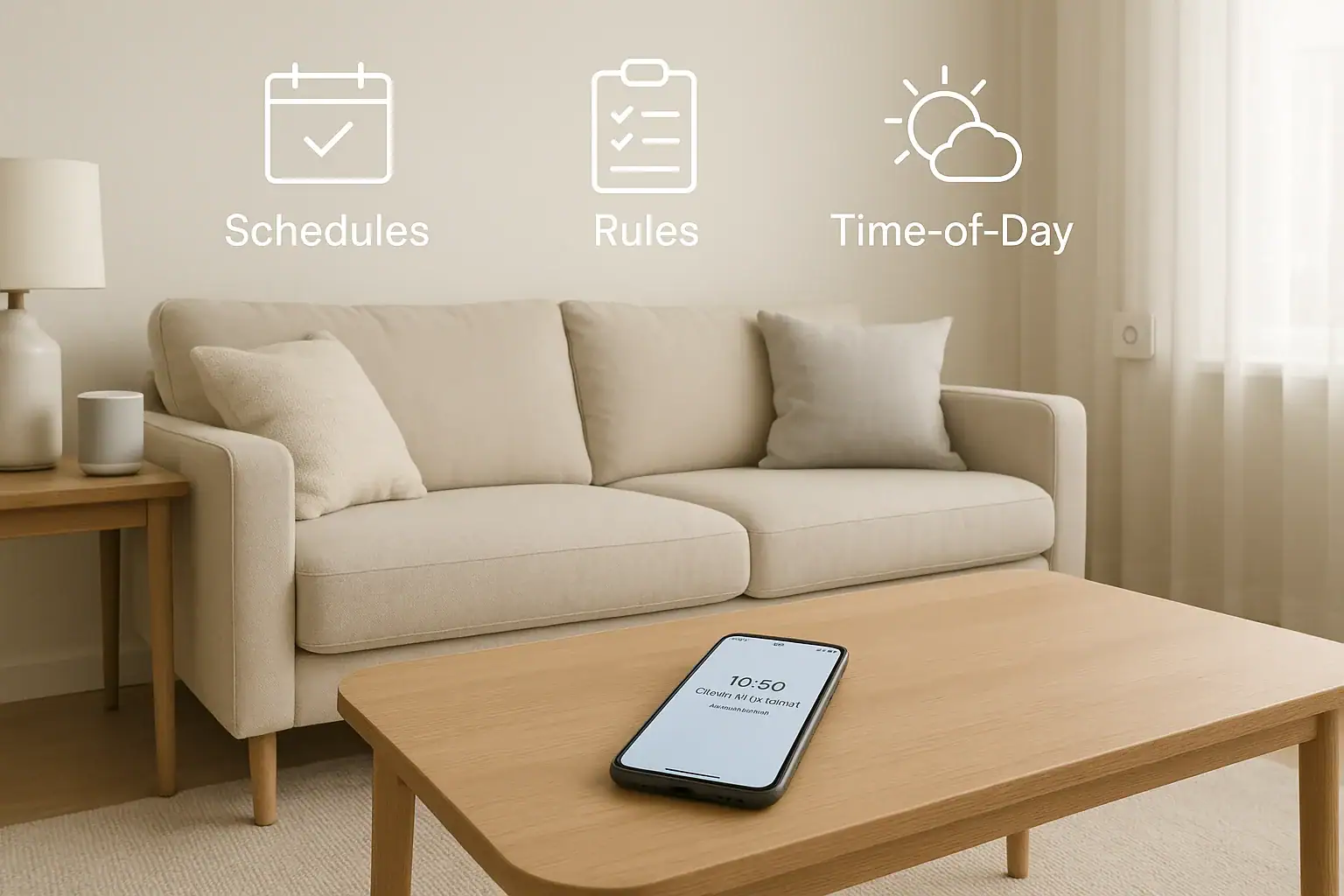
Smart home devices can make life easier, safer, and more convenient. But when every door sensor, camera, light, and speaker wants your attention, your phone can quickly turn into a constant stream of pings and banners. Instead of feeling safer and more in control, you may feel distracted, stressed, or tempted to ignore alerts altogether. That is risky when some notifications actually matter, like a water leak, smoke alarm, or unexpected motion at night.
On this page(click to collapse)
- Why Smart Home Notification Overload Happens
- Step 1: Decide Which Alerts Actually Matter
- Step 2: Group Devices by Room and Purpose
- Step 3: Use Schedules to Limit Alerts by Time of Day
- Step 4: Use Rules to Filter Out Noise
- Step 5: Customize Notification Types and Channels
- Step 6: Turn Off or Reduce Non-Essential Alerts
- Step 7: Use Modes Like Home, Away, and Sleep
- Step 8: Review and Adjust Your Notifications Regularly
- Balancing Safety and Peace of Mind
- Related guides
The good news is that you can tame notification overload without giving up the benefits of your smart home. By using rules, schedules, and a few smart habits, you can filter out the noise and keep only the alerts that help you act quickly when it counts. This guide walks you through practical steps to organize your devices, design smarter alerts, and create daily routines that work for your household.
Why Smart Home Notification Overload Happens
Before you fix the problem, it helps to understand why it happens. Most devices are set to be “helpful” by default, which often means sending more alerts than you need.
Common causes of alert fatigue
- Too many devices: Each new sensor, camera, or plug adds more potential alerts.
- Overly sensitive settings: Motion sensors that trigger on every car, pet, or shadow.
- All-or-nothing notifications: Devices that send the same type of alert for minor and serious events.
- No time-based rules: The same alerts come through at 2 p.m. and 2 a.m., even though your needs are different.
- Multiple people, same alerts: Everyone in the home gets every notification, even if only one person needs to act.
The result is alert fatigue. You start ignoring notifications, muting them, or swiping them away without reading. That is a problem when a truly urgent alert appears.
Step 1: Decide Which Alerts Actually Matter
The first step is not technical. It is about deciding what is truly important for your home and lifestyle. Once you know that, you can build rules and schedules around it.
Rank your alerts by priority
Make a simple list of the types of notifications you get today. Then group them into three levels:
- Critical: Anything that could affect safety, security, or major property damage.
- Important: Things that are useful to know soon, but not emergencies.
- Nice to have: Convenience updates or general information.
Examples of each level:
- Critical: Smoke or carbon monoxide alarm, water leak detected, forced entry, unexpected motion at night, door left unlocked when you are away.
- Important: Package at the door, garage door left open for more than a set time, child arriving home from school, power outage.
- Nice to have: Light turned on, thermostat changed, routine started, appliance finished a cycle.
Your goal is to keep critical alerts as real-time push notifications, manage important alerts with rules or summaries, and reduce or silence most of the “nice to have” alerts.
Step 2: Group Devices by Room and Purpose
Smart home apps often allow you to organize devices by room or zone. This is not just for looks. It helps you target rules and schedules more precisely so you do not treat every device the same.
Create logical zones in your home
Think beyond individual rooms. Create zones based on how you use your home:
- Perimeter: Exterior doors, windows, outdoor cameras, driveway sensors.
- Common areas: Living room, kitchen, hallways.
- Private areas: Bedrooms, home office.
- Utility areas: Basement, garage, laundry room, mechanical room.
- Outdoor living: Patio, backyard, pool area.
Perimeter and utility zones often deserve higher-priority alerts, while some indoor motion or lighting updates can be lower priority or even silent.
Assign notification roles to each zone
For each zone, decide:
- Whether it should send alerts at all.
- Which alerts are critical vs. informational.
- Who in the household needs to receive them.
- During which hours alerts make sense.
For example, you might want instant alerts for motion in the backyard at night, but not during the day when kids are playing outside.
Step 3: Use Schedules to Limit Alerts by Time of Day
Schedules are one of the most powerful ways to reduce notification overload. Many smart home platforms allow you to create time-based rules for when a device is active or when it can send alerts.
Define your household schedule
Start with a simple breakdown of your typical day:
- Morning: Getting ready, leaving for work or school.
- Daytime: Home empty or partially occupied.
- Evening: Everyone home, more movement and activity.
- Night: Most people asleep, minimal expected activity.
Then match alert behavior to each period:
- Morning: Focus on reminders (garage door, front door locked, thermostat set).
- Daytime: Strong security alerts for unexpected entry or motion.
- Evening: Fewer alerts for indoor motion, more for doors and outdoor areas.
- Night: Only critical alerts and outdoor or perimeter notifications.
Examples of time-based notification rules
Here are some practical rule ideas you can adapt:
- Night motion rule: Send a push notification if motion is detected in the backyard between 11 p.m. and 6 a.m., but stay silent during the day.
- Door check rule: At 10 p.m., send a single summary notification if any exterior door is unlocked or open.
- Garage reminder rule: If the garage door is open for more than 15 minutes between 8 a.m. and 6 p.m., send an alert. After 6 p.m., shorten that to 5 minutes.
- Appliance quiet hours: Turn off non-urgent appliance notifications between 9 p.m. and 7 a.m. to avoid sleep disruption.
The goal is to match your alert behavior to your routine so you are not flooded with notifications when you expect movement and activity.
Step 4: Use Rules to Filter Out Noise
Rules let you define conditions for when a notification should be sent. Instead of “alert every time there is motion,” you can say “alert only if these conditions are met.”
Common rule types that reduce alerts
- Presence-based rules: Use your phone location or a home/away mode to change which alerts you receive.
- Device state rules: Only alert if a door has been open for a certain amount of time, not every time it opens.
- Zone-based rules: Only alert when motion is detected in specific zones, such as perimeter areas, during certain times.
- Stacked conditions: Combine multiple conditions, such as time of day, presence, and device state.
Practical rule examples
Consider adding rules like these:
- Home vs. away: When everyone is home, silence indoor motion alerts and only keep perimeter alerts. When the home is set to away, enable more detailed notifications.
- Door left open: Instead of alerting every time the back door opens, send one alert if it stays open longer than 5 or 10 minutes.
- Pet-friendly motion: Reduce motion sensitivity or limit alerts to human-sized movement, if your devices support that feature.
- Stacked security rule: Alert only if motion is detected in the living room and the system is in away mode and it is nighttime.
By stacking conditions, you can dramatically cut down on false alarms while still catching unusual activity.
Step 5: Customize Notification Types and Channels
Not every alert needs to buzz your phone. Many smart home platforms and phones allow you to choose how alerts appear and how urgent they feel.
Use different levels of interruption
For each device or automation, choose an appropriate notification style:
- High priority: Loud sound, vibration, and lock-screen alert for critical safety and security events.
- Standard priority: Regular push notification for important but non-emergency events.
- Silent notification: No sound or vibration, only a badge or in-app message for low-priority updates.
- Email or summary: Daily or weekly summary email for logs and activity history.
Reserve high-priority alerts for the small number of events that require immediate action.
Separate alerts by person
If multiple people live in your home, not everyone needs every alert. You can often assign notifications based on role:
- Primary homeowner: All critical alerts, plus important device or system issues.
- Partner or roommate: Security alerts and home arrival notifications.
- Teen or older child: Alerts related to their own arrival, curfew, or bedroom devices.
- Caregiver or relative: Only specific alerts, such as a door opening for a family member who needs assistance.
Sharing the load avoids one person being overwhelmed by every device in the home.
Step 6: Turn Off or Reduce Non-Essential Alerts
Some notifications are simply not worth the interruption. It is okay to turn them off entirely or move them to a less intrusive channel.
Common alerts you can usually disable
Consider turning off or reducing:
- Notifications every time a routine runs (such as lights turning on at sunset).
- Alerts for manual actions you take yourself, like turning a light on with your phone.
- Frequent status updates that you rarely act on, such as minor temperature changes.
- Repeated alerts for the same event when one alert would be enough.
You can still review activity logs in your smart home app without being interrupted each time something happens.
Use summaries for low-priority information
Instead of real-time alerts, try:
- A daily summary of door activity, motion events, or energy usage.
- A weekly report on which devices were offline or had low battery.
- Monthly overviews of thermostat settings or energy-saving routines.
Summaries give you insight without constant distraction.
Step 7: Use Modes Like Home, Away, and Sleep
Many smart home systems offer modes or scenes such as Home, Away, and Sleep. These are ideal for switching entire groups of rules and schedules on or off at once.
Define what each mode means for alerts
Customize your modes so they match your lifestyle:
- Home mode: Fewer indoor motion alerts, more focus on perimeter and safety sensors.
- Away mode: More detailed alerts for doors, windows, motion, and unexpected activity.
- Sleep mode: Only critical alerts and specific motion zones, such as exterior doors and nursery rooms.
When you change modes, your notification rules should change automatically.
Automate mode changes
To make this easier, consider automating mode changes:
- Set Away mode when all household phones leave the property.
- Switch to Home mode when the first person returns.
- Activate Sleep mode at a set time or when a bedtime routine runs.
Automated modes keep your notifications appropriate without you having to remember to change settings every day.
Step 8: Review and Adjust Your Notifications Regularly
Smart homes change over time. You add devices, move furniture, or shift your routine. A quick review every few months keeps your notification setup working well.
Monthly or quarterly checkup
Set a reminder to:
- Scan your notification list and turn off any alerts you have been ignoring.
- Fine-tune motion sensitivity if you are still getting false alarms.
- Adjust schedules for seasonal changes, such as different daylight hours.
- Confirm that critical alerts are still reaching the right people.
If you notice that you are swiping away the same type of alert every day, that is a sign it should be downgraded, summarized, or turned off.
Balancing Safety and Peace of Mind
The goal of a smart home is to make life easier, not more stressful. By using rules, schedules, and thoughtful settings, you can reduce notification overload while still staying informed about what truly matters.
Focus on three key ideas:
- Protect safety and security alerts above all else.
- Match your notifications to your daily routine and home modes.
- Regularly clean up alerts that no longer serve a purpose.
With a little planning, your smart home can quietly handle routine events in the background and only interrupt you when you really need to know. That balance helps you feel both protected and relaxed in your home.
If you are building out a broader smart home and safety plan, you can explore more guides and ideas at this smart home and safety hub.
Related posts
Browse this topic →
How to Set Video Doorbell Motion Zones for Fewer Alerts
Smart Home Troubleshooting: Quick Fixes for Devices Dropping Offline
How to Set Up Guest WiFi Safely (And Why It Matters) at Home
Backup Power for WiFi and Security: A Simple UPS Guide for Your Home
Privacy Settings for Smart Speakers: Practical Defaults for Safer Listening
Smart Air Quality Alerts: How to Set Thresholds That Make Sense
Keep reading
About this site
Signature Home Guide publishes practical, independent home guides. We aim to be clear, helpful, and transparent.
Affiliate disclosure
As an Amazon Associate, we earn from qualifying purchases. Some links on this site may be affiliate links. If you buy through these links, we may earn a small commission at no extra cost to you. This helps support our content. Learn more.