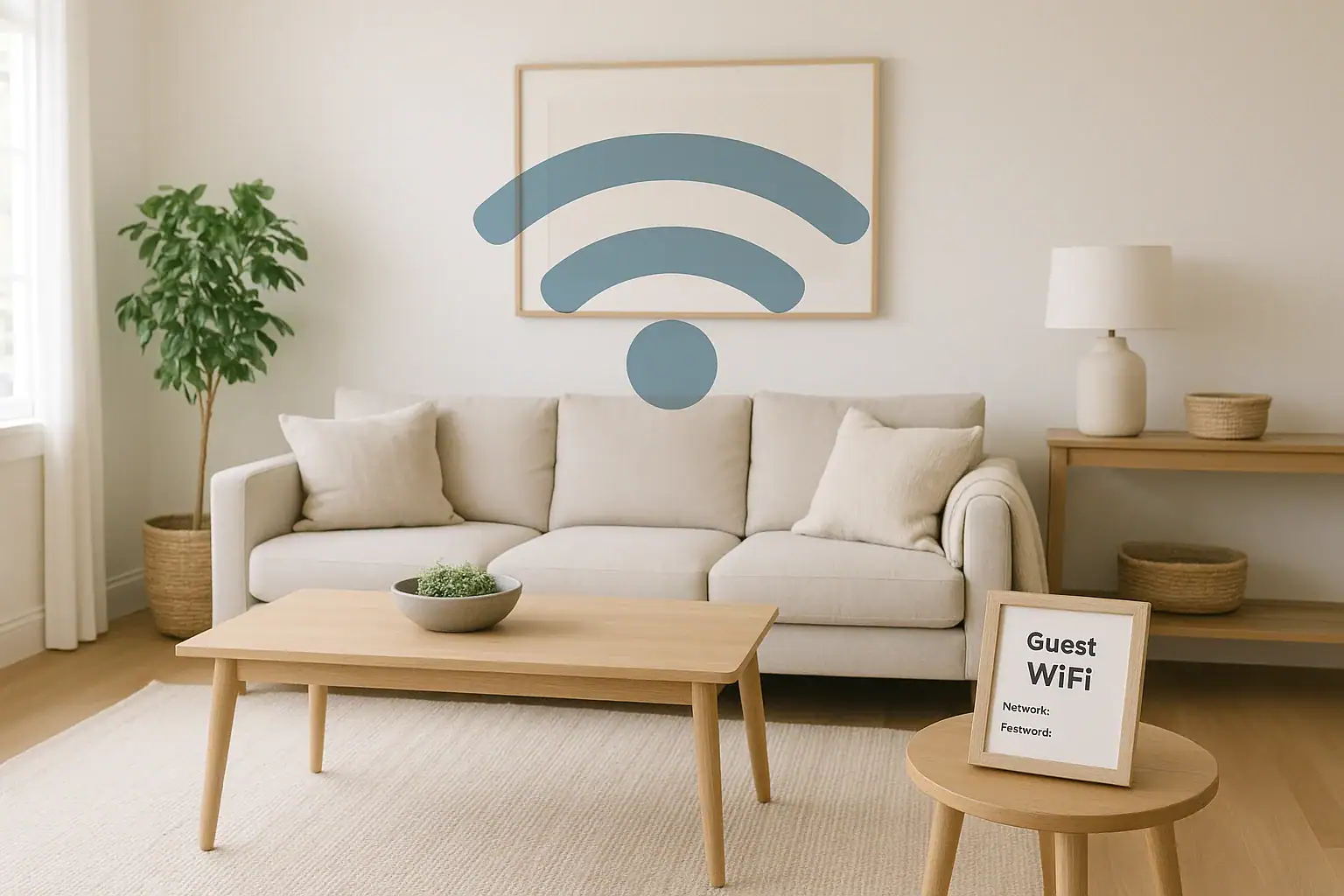
If you regularly have friends, family, babysitters, or contractors in your home, you have probably shared your WiFi password more times than you can count. It feels harmless and polite, but every new device on your network is another doorway into your digital life. A dedicated guest WiFi network is one of the simplest ways to keep visitors connected while keeping your own devices and data safer. You do not need to be a tech expert to do it, and the peace of mind is well worth the few minutes it takes to set up.
On this page(click to collapse)
- Why a Guest WiFi Network Matters for Home Safety
- Before You Start: What You Need to Know About Your Router
- Step-by-Step: How to Set Up a Safe Guest WiFi Network
- Best Practices for Keeping Guest WiFi Safe Over Time
- How to Share Guest WiFi Access Safely and Conveniently
- Common Questions About Guest WiFi Safety
- Bringing It All Together
- Related guides
This guide explains in plain language why a guest network matters, what risks it helps prevent, and how to set it up step by step. You will learn how to separate guest devices from your smart home gadgets, choose the right settings, and share access safely without creating more work for yourself. By the end, you will have a clear, practical plan to make your home WiFi friendlier for guests and safer for you.
Why a Guest WiFi Network Matters for Home Safety
A home WiFi network is no longer just for laptops and phones. It often connects security cameras, smart locks, thermostats, baby monitors, speakers, and more. When you give someone your main WiFi password, you are not just sharing internet access. You are potentially opening a path to everything connected in your home.
The risks of sharing your main WiFi password
Most people share their WiFi password without thinking about what could go wrong. Here are a few real risks:
- Malware on guest devices: A visitor’s phone or laptop could be infected without them knowing. Once it connects to your main network, that malware may try to spread to other devices.
- Accidental access to shared folders: Many computers and network drives share files by default. A guest device on your main network might see or access shared photos, documents, or backups.
- Smart home device exposure: Some smart home devices have weak security settings by default. A device on your main network might be able to scan for and interact with them.
- Password reuse problems: If you reuse your WiFi password anywhere else, or if it is easy to guess, sharing it widely increases the chance it will leak or be misused later.
- Long-term access: Once someone has your main WiFi password, they can reconnect whenever they are nearby unless you change it.
How a guest network protects your home
A guest WiFi network is a separate wireless network that uses its own name and password. It usually has limited access and is isolated from your main network. That separation offers several benefits:
- Network isolation: Guest devices can reach the internet, but not your personal computers, phones, or smart home devices on the main network.
- Damage control: If a guest device is infected or compromised, the problem is more likely to stay confined to the guest network.
- Easier password management: You can use a simple, shareable password for guests and keep a stronger, private one for your main network.
- Cleaner device list: Your main network stays limited to your own devices, which makes troubleshooting and monitoring easier.
- Better privacy: Guests are less likely to see shared devices, printers, or storage drives that might reveal personal information.
In short, a guest network lets you be generous with internet access without being careless with your digital safety.
Before You Start: What You Need to Know About Your Router
The exact steps to set up guest WiFi depend on your router, but the basic process is similar across most home setups. You do not need advanced skills, but you should gather a few details first.
Check whether your router supports guest WiFi
Most modern home routers support guest networks. To confirm:
- Look for a “Guest Network” or “Guest WiFi” section in your router’s app or web interface.
- Search online for your router model plus the phrase “guest network setup.”
- If your internet provider manages your router, check your account settings or support pages for guest WiFi options.
Find your router’s login and address
To change WiFi settings, you usually log into your router through a web browser or a mobile app. Common steps include:
- Connect a phone or computer to your existing WiFi network.
- Open a browser and enter the router address, often something like
192.168.0.1or192.168.1.1. - Log in with the router username and password. If you have never changed them, they may be printed on a label on the router.
If your router uses a mobile app, you may be able to manage guest WiFi directly from the app instead of using a browser.
Secure your router admin account first
Before setting up guest WiFi, make sure your router’s admin account is not using a default or weak password. Anyone who can log into your router can see and change network settings, including your WiFi passwords.
- Change the admin password to something long and unique.
- Store it in a secure place, such as a password manager or a written note kept at home.
- Do not share your router admin password with guests.
Step-by-Step: How to Set Up a Safe Guest WiFi Network
Once you can log into your router or its app, you are ready to create or adjust your guest network. The exact labels may differ, but these steps cover the most common options.
1. Enable the guest network feature
Look for a section labeled something like:
- “Guest Network”
- “Guest WiFi”
- “Wireless Guest Access”
There is usually a toggle or checkbox to turn it on. Once enabled, you will see fields to set the network name, password, security type, and other options.
2. Choose a clear but generic network name (SSID)
The SSID is the name that shows up when guests look for available WiFi networks. For your guest network:
- Use something easy to recognize, such as “Smith-Guest” or “House-GuestWiFi.”
- Avoid using your full name, apartment number, or other sensitive personal details.
- Make it clearly different from your main network name, so guests do not connect to the wrong one.
3. Turn on strong encryption and a password
Never leave your guest network open. An open network can be used by anyone nearby, which can slow your internet and create legal and security issues. Instead:
- Select the strongest security option your router offers, such as WPA2 or WPA3.
- Avoid older options like WEP, which are considered insecure.
- Set a password that is easy to read and type but not trivial to guess.
A good guest WiFi password might be a short phrase with numbers, such as a combination of two or three unrelated words and a few digits. Avoid using your street address, phone number, or the same password as your main WiFi.
4. Isolate guests from your main network
Many routers include a setting that prevents devices on the guest network from reaching devices on your main network. This is one of the most important options for safety. Look for settings like:
- “Allow guests to access local network”
- “Access to intranet”
- “Guest isolation” or “AP isolation”
For stronger protection:
- Disable any option that lets guests access your local or home network.
- Enable isolation features that keep guest devices separate from each other and from your main devices.
5. Consider bandwidth limits for guests
If several people are using your guest WiFi at once, they can slow down your connection. Some routers let you set speed or bandwidth limits on the guest network. This can help you:
- Reserve enough speed for your own work, streaming, or smart home devices.
- Prevent a single guest from using all available bandwidth for large downloads.
If your router offers this feature, set a reasonable limit that allows normal browsing and streaming but keeps some capacity reserved for your main network.
6. Decide whether to use a captive portal
Some routers support a “captive portal,” which is a simple web page guests see when they first connect. It might show your network name, a short message, or basic terms of use. At home, this is optional, but it can be useful if:
- You host frequent gatherings and want to share simple instructions.
- You want to remind guests not to use your network for illegal or risky activities.
If you use a captive portal, keep it simple and avoid collecting personal data you do not need.
7. Save and test your new guest network
After adjusting your settings:
- Click “Save,” “Apply,” or the equivalent button.
- Use your phone or a spare device to find the new guest network by name.
- Enter the guest password and make sure you can browse the web.
- Check that you cannot see your personal computers, printers, or smart devices from the guest network.
If everything works, your guest WiFi is ready to share.
Best Practices for Keeping Guest WiFi Safe Over Time
Setting up a guest network is a strong first step, but a few simple habits will keep it safer and more convenient in the long run.
Use different passwords for main and guest networks
Your main WiFi password should be long and private. Your guest password should be easier to share but still not obvious. Never reuse the same password on both networks. If you ever need to change your main password, you will not have to notify every guest who has ever connected.
Update your router firmware regularly
Routers occasionally receive security updates, just like phones and computers. To stay protected:
- Check your router or app for a “Firmware” or “Software Update” section.
- Turn on automatic updates if available.
- Schedule a quick check every few months to apply updates.
Updated firmware can fix security flaws that might otherwise put both your main and guest networks at risk.
Refresh your guest password periodically
Over time, your guest password may spread farther than you expect. It might be written on a note, saved on multiple devices, or shared with people you do not know well. To keep control:
- Change your guest WiFi password a few times a year, or after large gatherings.
- Update any written signs or notes with the new password.
- Let regular visitors know when you change it.
Refreshing the password occasionally helps limit long-term access without much effort.
Turn off the guest network when you do not need it
If your router makes it easy, you can disable the guest network when you are not expecting visitors. This reduces the number of active wireless signals around your home and slightly shrinks your exposure to potential attacks. It is not required, but it is a simple extra layer of caution if you are comfortable toggling it on and off.
Keep smart home devices on your main or a separate network
Smart home devices should never be on the guest network. They often need to communicate with each other and with your phone or tablet. Instead:
- Keep smart home devices on your main network, where you control access.
- If your router supports it, consider a separate network or VLAN just for smart devices, with limited access to your personal computers.
- Use strong, unique passwords and two-factor authentication for any smart home accounts.
The goal is to keep guest devices away from the systems that control your locks, cameras, and other sensitive equipment.
How to Share Guest WiFi Access Safely and Conveniently
Once your guest network is set up, you want a simple way to share it without repeating yourself or exposing your main password.
Post the guest network info in a visible spot
Instead of answering the same question at every visit, you can:
- Write the guest network name and password on a small card or note.
- Place it near the front door, in the living room, or in a guest bedroom.
- Update it whenever you change the password.
This keeps things simple for both you and your visitors.
Use QR codes for quick connections
Many phones can connect to WiFi by scanning a QR code. You can generate a WiFi QR code using a trusted website or app, then print it and place it where guests can see it. This helps avoid typing errors and makes it easier for guests with long or complex passwords to connect quickly.
Set expectations for responsible use
At home, you do not need a formal policy, but it is reasonable to set basic expectations, especially if you host teens, large groups, or frequent visitors. You might:
- Politely ask guests to avoid illegal downloads or risky sites.
- Mention that you monitor your internet bill and usage.
- Remind guests that the network is shared and heavy use can affect everyone.
A short, friendly note near your guest WiFi information can communicate this without making anyone uncomfortable.
Common Questions About Guest WiFi Safety
Is a guest network really necessary in a small home?
Even in a small apartment or house, a guest network is helpful if you ever share your WiFi password. It takes only a few minutes to set up and provides a clear boundary between your devices and everyone else’s. That boundary becomes more important as you add smart locks, cameras, and other connected devices.
Can guests still see what I do online?
Guests on your guest network cannot easily see your personal browsing or activity if your networks are properly separated. However, your internet provider and some websites may still collect data about usage. Using secure websites (those that start with “https”) and keeping your devices updated helps protect your privacy.
Will a guest network slow down my internet?
A guest network shares the same internet connection as your main network, so heavy use can affect your speeds. However, simply having a guest network enabled does not slow things down by itself. If you are concerned, use bandwidth limits for guests or ask visitors to avoid large downloads.
What if my router does not support guest WiFi?
If your current router does not offer a guest network feature, you have a few options:
- Check whether your internet provider can enable guest WiFi through their equipment or app.
- Consider upgrading to a router that supports multiple networks and modern security standards.
- As a temporary measure, you can change your main WiFi password after large gatherings, though this is less convenient.
Bringing It All Together
A guest WiFi network is a small change with a big impact on your home’s digital safety. By separating visitor devices from your own, you reduce the chances that malware, misconfigurations, or simple mistakes will affect your computers, phones, or smart home systems. You also gain more control over who can use your internet connection and for how long.
To recap, setting up guest WiFi safely involves:
- Enabling the guest network feature on your router or app
- Choosing a clear, generic network name and strong password
- Turning on encryption and isolating guests from your main network
- Considering bandwidth limits and optional captive portals
- Keeping your router updated and refreshing the guest password occasionally
- Sharing access conveniently with notes or QR codes
Once it is set up, you can welcome guests, contractors, and visitors with easy internet access while keeping your own devices and data on a safer, more private path. For more ways to strengthen your home’s connected safety, explore additional smart home and safety guides at this smart home and safety hub.
Related posts
Browse this topic →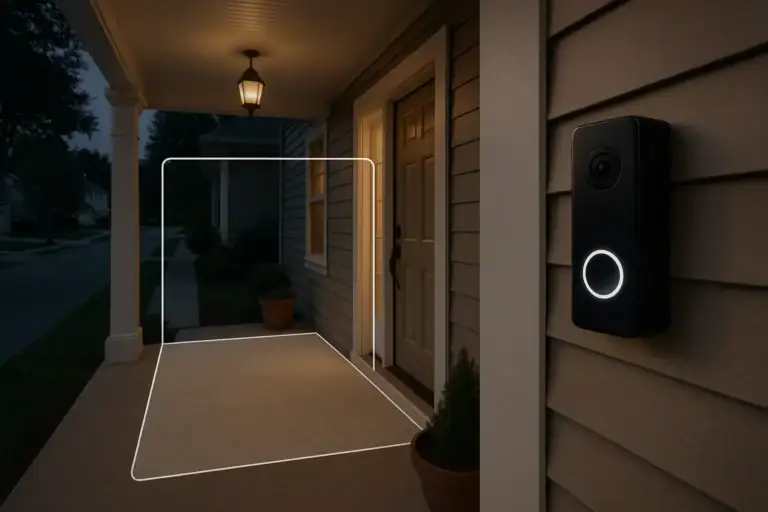
How to Set Video Doorbell Motion Zones for Fewer Alerts
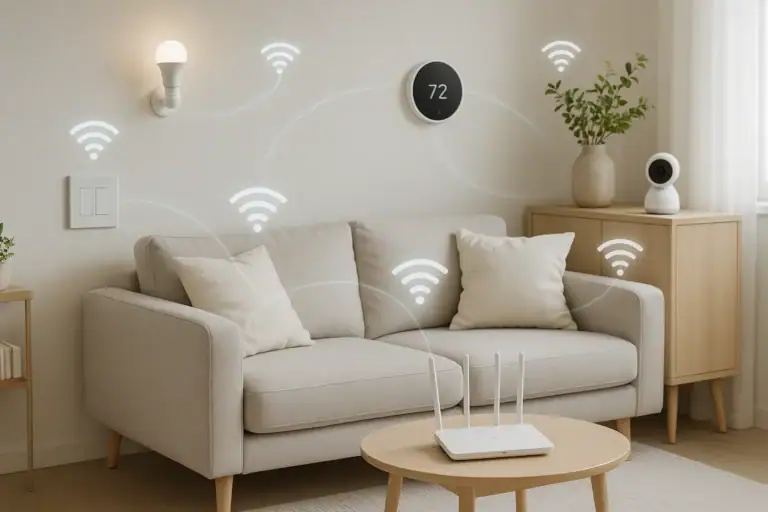
Smart Home Troubleshooting: Quick Fixes for Devices Dropping Offline
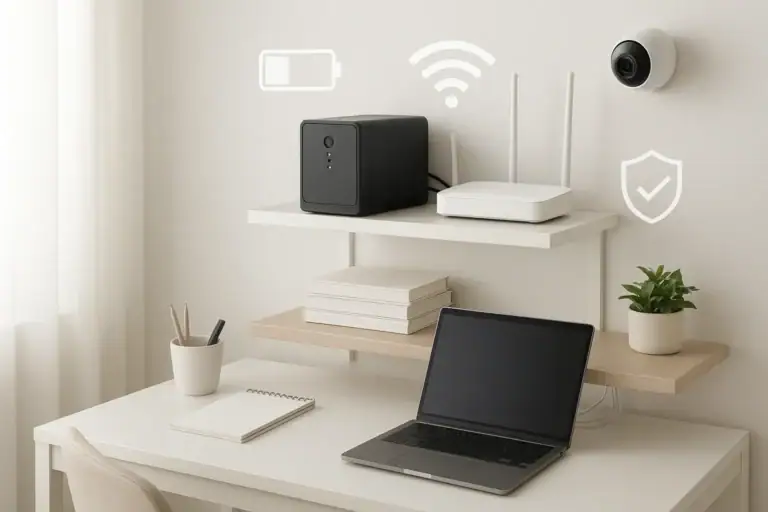
Backup Power for WiFi and Security: A Simple UPS Guide for Your Home
How to Reduce Smart Home Notification Overload With Rules and Schedules

Privacy Settings for Smart Speakers: Practical Defaults for Safer Listening
Smart Air Quality Alerts: How to Set Thresholds That Make Sense
Keep reading
About this site
Signature Home Guide publishes practical, independent home guides. We aim to be clear, helpful, and transparent.
Affiliate disclosure
As an Amazon Associate, we earn from qualifying purchases. Some links on this site may be affiliate links. If you buy through these links, we may earn a small commission at no extra cost to you. This helps support our content. Learn more.