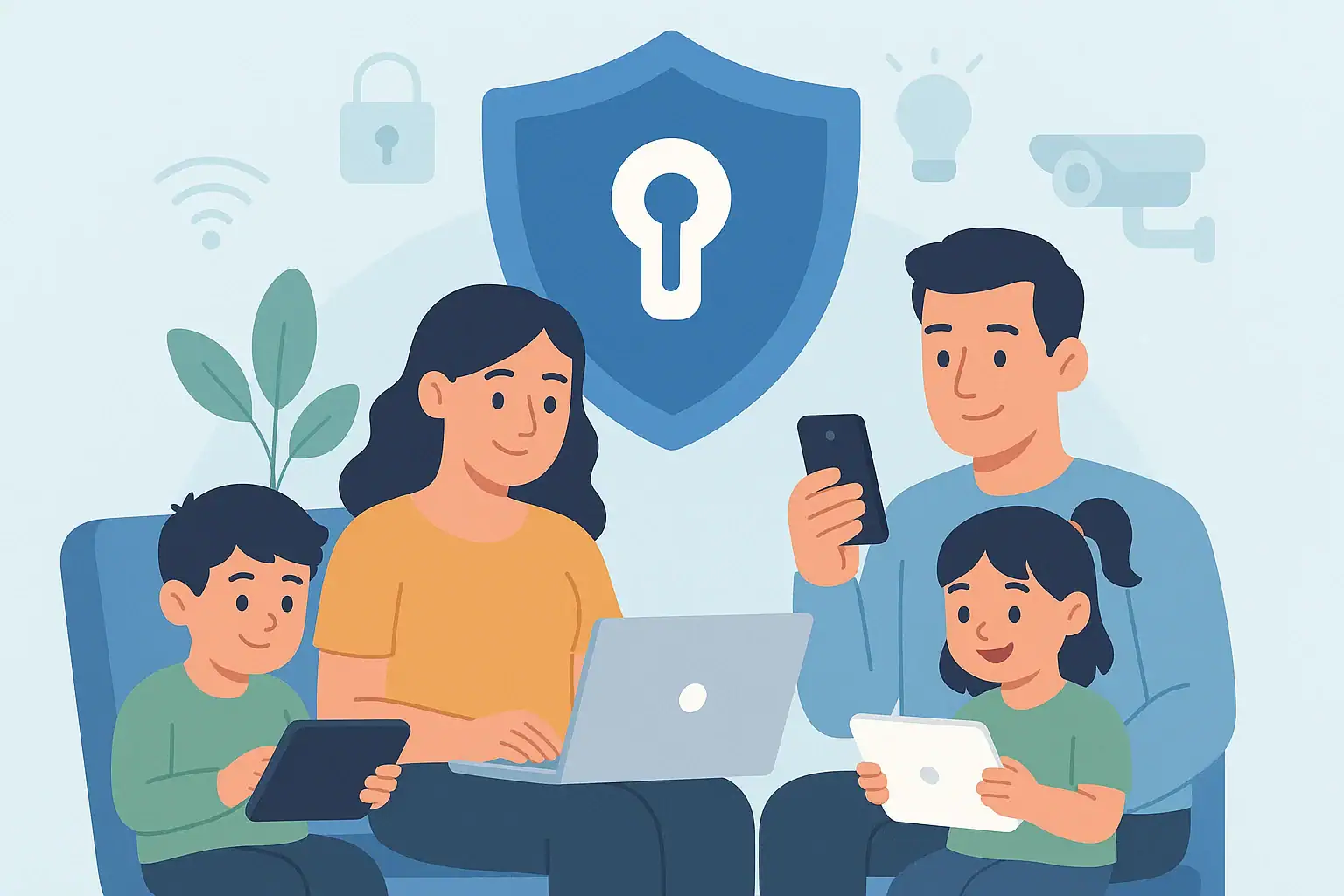
Managing passwords for a modern household can feel overwhelming. Streaming services, school portals, medical accounts, smart home apps, online shopping, and banking all require secure logins. Many families still rely on sticky notes, shared text messages, or reusing the same weak password everywhere. That approach is risky and makes it easy for someone to break into your accounts or lock you out when you need access most.
On this page(click to collapse)
- Why Your Household Needs a Password Manager
- Household Password Manager Checklist: Overview
- Step 1: Prepare Your Devices and Talk With Your Household
- Step 2: Choose a Password Manager That Fits Your Household
- Step 3: Create a Strong Master Password and Backup Plan
- Step 4: Set Up Your Personal Vault and Browser/App Extensions
- Step 5: Create Shared Vaults for Household Accounts
- Step 6: Import and Organize Existing Passwords
- Step 7: Turn On Multi‑Factor Authentication
- Step 8: Set Family Rules for Password Use and Sharing
- Step 9: Secure Your Smart Home and Critical Accounts First
- Step 10: Maintain Good Habits With a Monthly Review
- Simple Daily Routine for Using Your Password Manager
- Bringing It All Together
- Related guides
A password manager offers a safer, simpler way to store and share logins across your household. Instead of trying to remember dozens of passwords, you remember one strong master password and let the tool handle the rest. This guide walks you through password manager basics for households using a practical, step‑by‑step checklist. You will learn how to get ready, set up your first vault, add family members, and build everyday habits that keep your home’s digital life secure. You do not need to be tech‑savvy to follow along—just take it one step at a time.
Why Your Household Needs a Password Manager
Before jumping into setup, it helps to understand why a password manager matters for your home’s safety and convenience.
Common household password problems
- Reused passwords: Using the same or similar password on multiple sites means one breach can expose many accounts.
- Weak passwords: Short, simple passwords are easy to guess or crack with automated tools.
- Unsecure sharing: Sending passwords by text, email, or messaging apps leaves a trail that can be stolen.
- Lost access: When only one person knows a password, others are stuck if that person is unavailable.
- Smart home risk: Weak passwords on cameras, locks, or routers can give intruders a way into your network.
How a password manager helps families
- Strong, unique passwords: It generates and stores complex passwords for every account.
- Secure sharing: Family members can access shared logins without seeing or copying the actual password.
- Central control: You can see what is stored, update it once, and keep everyone in sync.
- Faster logins: Browser and app autofill makes signing in much easier on all devices.
- Emergency access: Trusted family members can access important accounts if something happens to you.
Household Password Manager Checklist: Overview
Use this simple checklist to set up password manager basics for your household. You can work through it in order or tackle a few steps at a time.
- Prepare your devices and talk with your household.
- Choose a password manager that fits your needs.
- Create a strong master password and backup plan.
- Set up your personal vault and browser/app extensions.
- Create shared vaults for household accounts.
- Import and organize existing passwords.
- Turn on multi‑factor authentication.
- Set family rules for password use and sharing.
- Secure your smart home and critical accounts first.
- Maintain good habits with a quick monthly review.
Step 1: Prepare Your Devices and Talk With Your Household
Start by making sure everyone understands what you are doing and why. A short conversation can prevent confusion later.
Quick discussion points
- Explain that a password manager is like a locked digital notebook for logins.
- Clarify that each person will have their own private space plus shared family logins.
- Agree that no one will store passwords in notes apps, browsers, or on paper going forward.
- Decide who will be the primary organizer for the household account.
Device readiness checklist
On each family member’s main device:
- Update the operating system to the latest version.
- Confirm that each person can unlock their device with a PIN, fingerprint, or face recognition.
- Make sure there is space to install one more app.
- Check that browsers are up to date (for example, Chrome, Edge, Safari, or Firefox).
Step 2: Choose a Password Manager That Fits Your Household
There are many password managers available. You do not need the most advanced one; you need one that your family will actually use.
Features to look for
- Family or household plan: Allows multiple users with shared and private vaults.
- Cross‑platform support: Works on the phones, tablets, and computers your family uses.
- Browser extensions: Supports the main browsers in your home for autofill.
- Secure sharing: Lets you share logins without sending passwords by text or email.
- Emergency access: Offers a way for trusted people to access your vault if needed.
- Simple interface: Easy enough for less tech‑confident family members.
Once you choose a tool, sign up for a household or family plan using an email address that you plan to keep long‑term.
Step 3: Create a Strong Master Password and Backup Plan
Your master password is the key to your entire password vault. It must be strong, memorable, and stored safely.
How to create a strong, memorable master password
Use a long passphrase that is easy for you to remember but hard for others to guess. Aim for at least 16 characters.
For example, build a phrase from unrelated words and numbers:
- Pick four or five random words.
- Add numbers or punctuation in between.
- Avoid personal details like names, birthdays, or addresses.
Say your passphrase in your head a few times to lock it in.
Master password backup checklist
- Write your master password on paper clearly and accurately.
- Store the paper in a secure place, such as a home safe or locked file cabinet.
- Do not store your master password in a digital note, photo, or email.
- Decide whether one trusted adult in the household should know it in case of emergency.
Step 4: Set Up Your Personal Vault and Browser/App Extensions
After creating your account and master password, set up the tools that make daily use easier.
Personal vault setup checklist
- Log in to your password manager on your main computer.
- Walk through any setup wizard or tutorial it provides.
- Note how to add a new item (usually a button like “Add” or “New”).
- Locate the search bar and any folders or categories.
Install browser extensions
On each browser you use regularly:
- Install the official extension for your password manager.
- Log in with your master password.
- Allow it to save and fill passwords when prompted.
- Turn off built‑in browser password saving to avoid confusion.
Install mobile apps
On your phone and tablet:
- Install the password manager app from the official app store.
- Log in and enable biometric unlock (fingerprint or face) if available.
- Turn on autofill in your device settings so it can fill passwords in apps and browsers.
Step 5: Create Shared Vaults for Household Accounts
Shared vaults are spaces where multiple family members can access the same logins without seeing or copying the actual passwords.
Decide what to share
Common shared vault categories include:
- Streaming and entertainment services
- Smart home apps (locks, cameras, thermostats, lights)
- Home internet and router logins
- Shared shopping accounts and reward programs
- Family calendar or planning tools
Shared vault setup checklist
- Create at least one shared vault named something clear, such as “Household Shared”.
- Invite household members by email to join the family plan.
- Assign appropriate permissions (for example, adults can edit, kids can view only).
- Move or add shared logins into the shared vault instead of sending passwords directly.
Step 6: Import and Organize Existing Passwords
Most people already have passwords stored in browsers, phones, or scattered notes. Bringing these into one place is a key step.
Gather your existing passwords
- Export saved passwords from your main browsers, if they offer that option.
- Check any old password lists in notebooks, planners, or printed pages.
- Look for passwords saved in notes apps or documents and plan to move them.
Import and cleanup checklist
- Use your password manager’s import tool to bring in browser passwords.
- Delete any obvious duplicates or outdated logins.
- Group items into folders or tags like “Banking”, “Kids School”, “Smart Home”, and “Shopping”.
- Move shared logins into the shared vault and keep personal accounts in your private vault.
- After confirming everything is imported, remove passwords from browsers and notes to avoid confusion.
Step 7: Turn On Multi‑Factor Authentication
Multi‑factor authentication (often called MFA or two‑step verification) adds an extra layer of protection beyond your password.
Why MFA matters for households
Even if a password is stolen, MFA can stop someone from getting into your account because they would also need a code from your phone or an authentication app.
Accounts to protect first
- Email accounts for adults and teens
- Banking, credit card, and investment accounts
- Cloud storage and photo backup accounts
- Smart home hubs, routers, and camera systems
- School and medical portals, if they support MFA
MFA setup checklist
- Sign in to each important account and look for “Security” or “Login and security” in settings.
- Enable multi‑factor authentication using an app or text message codes, depending on what is offered.
- Store backup codes in your password manager as secure notes.
- Note which family member’s phone receives codes, and consider a backup option for another adult.
Step 8: Set Family Rules for Password Use and Sharing
Clear rules help everyone use the password manager correctly and keep your household more secure.
Sample household password rules
- All new accounts must use the password manager to generate and store passwords.
- No one shares passwords by text, email, or messaging apps.
- Each person keeps their device locked with a PIN, fingerprint, or face recognition.
- Kids and teens ask an adult before creating accounts that need personal information.
- Adults review shared vault items before kids get access.
Teaching kids and teens
Explain password basics in simple terms:
- A strong password is long and hard to guess.
- You never share your passwords with friends or post them online.
- If something looks suspicious, tell an adult right away.
- The password manager is where they go to find logins, not random notes or screenshots.
Step 9: Secure Your Smart Home and Critical Accounts First
In a connected home, some accounts are more sensitive than others. Focus on these early in your setup plan.
Smart home and network checklist
- Router and Wi‑Fi: Change default passwords, create strong new ones, and store them in your password manager.
- Smart locks and garage openers: Use unique, strong passwords and enable MFA if available.
- Cameras and baby monitors: Change any default logins immediately and store details securely.
- Home automation hubs: Protect with strong passwords and, if possible, multi‑factor authentication.
Financial and identity‑related accounts
Also secure:
- Bank and credit union accounts
- Credit card and loan portals
- Tax and payroll accounts
- Insurance accounts for home, auto, and health
For each, store login details in your password manager and enable MFA where possible.
Step 10: Maintain Good Habits With a Monthly Review
Once your password manager is set up, a little ongoing attention keeps everything running smoothly.
Monthly password health checklist
- Review any alerts about weak, reused, or compromised passwords and update them.
- Remove accounts you no longer use to reduce clutter.
- Confirm that shared vaults still have the right people and permissions.
- Check that all new smart home devices and apps have unique, strong passwords stored in the manager.
- Remind family members to use the password manager for any new accounts.
Yearly deep‑dive
- Review your master password backup and confirm it is still stored safely.
- Update emergency access settings to reflect any life changes.
- Walk through key accounts with your spouse or another trusted adult so more than one person knows how to access them.
Simple Daily Routine for Using Your Password Manager
To make this new system stick, build a quick routine that fits into everyday life.
Daily routine ideas
- Open the password manager automatically when you start your computer.
- Use autofill instead of trying to remember or type passwords manually.
- When you create a new account, let the manager generate a strong password and save it right away.
- If a family member asks for a password, share it through the manager instead of reading it out loud or texting it.
Within a few weeks, using the password manager will feel natural, and you will spend far less time resetting forgotten passwords or hunting for scraps of paper.
Bringing It All Together
Setting up a password manager for your household is one of the most effective steps you can take to protect your digital life. By following this simple checklist—choosing a tool, creating a strong master password, organizing shared and personal vaults, enabling multi‑factor authentication, and setting clear family rules—you reduce the chances of account takeovers, lockouts, and confusion.
You do not need to complete every step in a single day. Start with your most important accounts and smart home devices, then gradually add the rest. Over time, your password manager becomes a central, trusted hub for your household’s logins, helping everyone stay safer and more organized online.
For more ways to protect your home’s connected devices and digital accounts, explore additional smart home and safety guides that build on these password manager basics.
Related posts
Browse this topic →
Smart Air Quality Alerts: How to Set Thresholds That Make Sense
How to Choose a Fire Extinguisher for the Kitchen (Classes Explained)
Emergency Kit for Apartments: Closet-Friendly Essentials for Small Spaces
Home Fire Escape Plan: Map, Meeting Point, and Practice Checklist
Childproofing the Smart Home: Settings and Physical Safety Tips
Garage Door Safety: Sensors, Remotes, and Common Failure Fixes
Keep reading
About this site
Signature Home Guide publishes practical, independent home guides. We aim to be clear, helpful, and transparent.
Affiliate disclosure
As an Amazon Associate, we earn from qualifying purchases. Some links on this site may be affiliate links. If you buy through these links, we may earn a small commission at no extra cost to you. This helps support our content. Learn more.