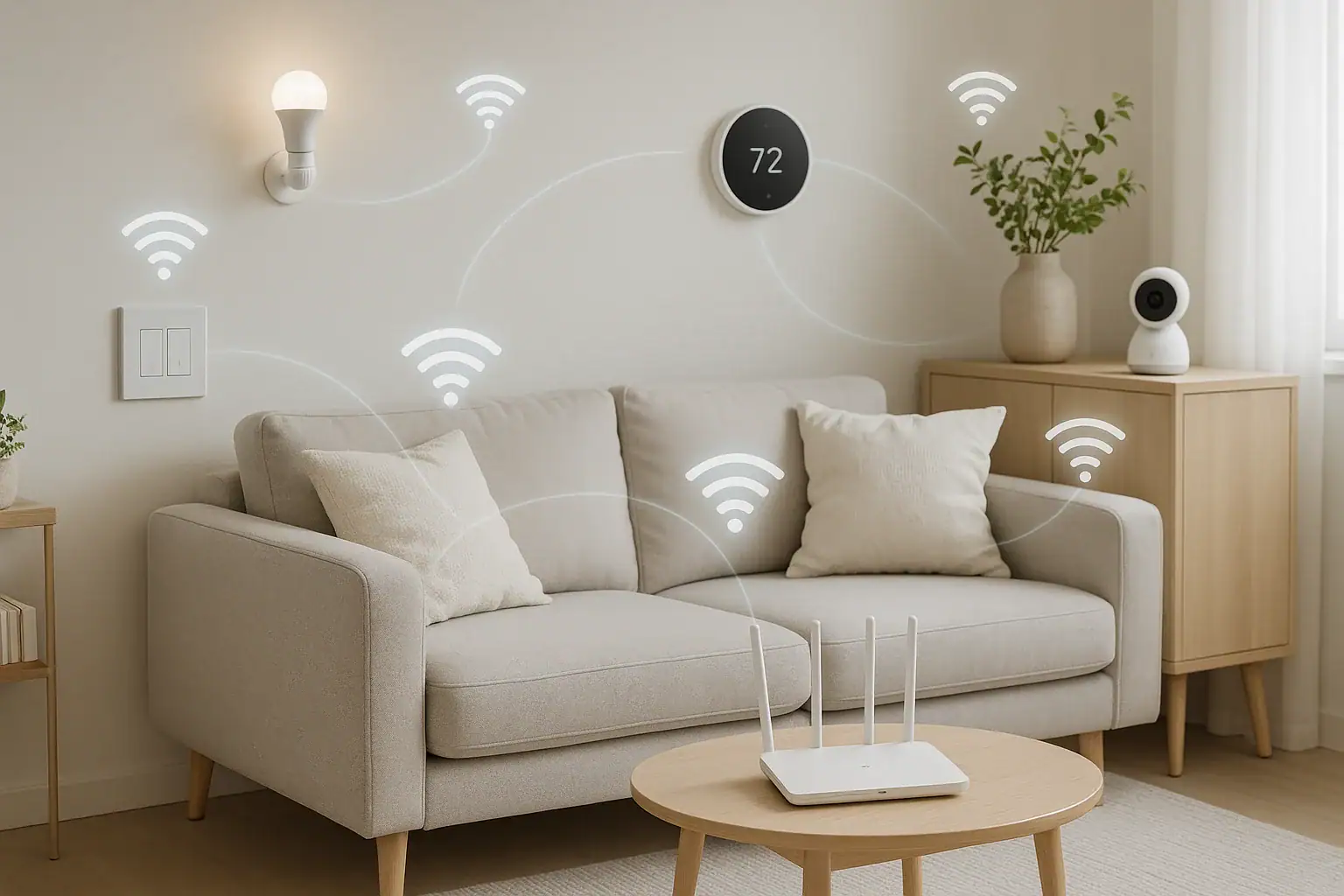
Smart home devices are supposed to make life easier, not more frustrating. Yet few things are more annoying than lights that do not respond, cameras that freeze, or a thermostat that suddenly goes offline. The good news is that most connection problems have simple causes and can be fixed with a few focused steps. You do not need to be a networking expert to get your devices back online and keep them stable.
On this page(click to collapse)
- Step 1: Confirm Whether the Problem Is Local or Internet‑Wide
- Step 2: Power Cycle the Right Things in the Right Order
- Step 3: Check Wi‑Fi Signal Strength and Placement
- Step 4: Separate 2.4 GHz and 5 GHz Wi‑Fi Issues
- Step 5: Check for Interference from Other Devices
- Step 6: Confirm Network Name, Password, and Security Settings
- Step 7: Update Firmware and App Software
- Step 8: Reduce Network Overload
- Step 9: Reset and Re‑Add Problem Devices
- Step 10: Improve Long‑Term Reliability and Safety
- When to Seek Professional or Advanced Help
- Related guides
This guide walks you through practical, quick troubleshooting steps when your smart home devices keep dropping offline. You will learn how to pinpoint whether the issue is your internet, your Wi‑Fi network, the device itself, or even the app you use to control it. By following these steps in order, you can solve most problems in minutes and prevent many of them from coming back.
Step 1: Confirm Whether the Problem Is Local or Internet‑Wide
Before you dive into device settings, figure out whether the issue is with your whole internet connection or just certain smart devices.
Quick checks
- Try loading a website on your phone or computer while connected to the same Wi‑Fi network.
- Test another device, such as a laptop or tablet, in the same room as the offline smart device.
- Switch your phone to cellular data and try the same website or app.
If nothing loads on Wi‑Fi but works on cellular, the problem is likely your internet connection or router. If the internet works on other devices, the issue is probably limited to certain smart home devices or their placement.
Step 2: Power Cycle the Right Things in the Right Order
Simply restarting devices fixes a surprising number of connection problems. The order matters because some smart devices need a stable network before they can reconnect.
How to restart your network cleanly
- Unplug your modem from power.
- Unplug your router or mesh Wi‑Fi system.
- Wait at least 30 seconds.
- Plug in the modem and wait until all status lights stabilize.
- Plug in the router and wait a few minutes for Wi‑Fi to come back.
Once your Wi‑Fi network is stable, restart the affected smart devices:
- Unplug the device from power for 20 to 30 seconds, then plug it back in.
- For battery devices, remove and replace the batteries or use the device’s restart option if available.
After a few minutes, check your app to see if the devices reconnect automatically. If they go offline again shortly after reconnecting, move on to the next steps.
Step 3: Check Wi‑Fi Signal Strength and Placement
Weak Wi‑Fi is one of the most common reasons smart home devices drop offline. Many devices have smaller antennas than phones or laptops, so they are more sensitive to distance and obstacles.
Signs of poor Wi‑Fi coverage
- Devices near your router work fine, but those farther away disconnect often.
- Video devices buffer, freeze, or show low‑quality streams.
- Devices in garages, basements, or outdoor areas are especially unreliable.
Simple placement fixes
- Move your router to a more central, open location in your home, away from thick walls and metal objects.
- Keep routers off the floor and out of cabinets; place them on a shelf or table for better coverage.
- Avoid placing smart devices directly behind large appliances, mirrors, or metal cabinets.
- If a device is right at the edge of your Wi‑Fi range, move it a few feet closer and test again.
If moving devices or your router improves reliability, you may need better coverage, such as additional access points or a mesh system, especially in multi‑story homes or homes with thick walls.
Step 4: Separate 2.4 GHz and 5 GHz Wi‑Fi Issues
Many smart home devices only support 2.4 GHz Wi‑Fi because it reaches farther and penetrates walls better. However, some routers combine 2.4 GHz and 5 GHz into one network name, which can confuse pairing or cause unstable connections.
How to tell if this is your issue
- Devices connect fine during setup but drop offline later.
- Your phone is on a 5 GHz connection while you try to add a 2.4 GHz‑only device.
- The app mentions 2.4 GHz during setup instructions.
Practical workarounds
- Stand closer to your router while setting up devices to encourage your phone to use 2.4 GHz if your router automatically chooses the band.
- If your router allows it, create separate network names for 2.4 GHz and 5 GHz, then connect smart devices only to the 2.4 GHz network.
- Temporarily disable 5 GHz in your router settings during setup, then turn it back on afterward.
Once devices are successfully paired and stable on 2.4 GHz, they usually stay connected as long as the network name and password do not change.
Step 5: Check for Interference from Other Devices
Wireless signals can interfere with each other, especially on the crowded 2.4 GHz band. Interference can cause random disconnects, slow response times, and devices that work only at certain times of day.
Common sources of interference
- Microwave ovens
- Cordless phones
- Baby monitors
- Older wireless cameras
- Bluetooth speakers and headphones
- Dense clusters of Wi‑Fi networks from nearby homes or apartments
How to reduce interference
- Move your router away from microwaves, cordless phone bases, and other wireless hubs.
- Avoid placing multiple wireless devices right next to each other.
- In your router settings, change the Wi‑Fi channel on the 2.4 GHz band and test whether stability improves.
- Turn off or unplug older wireless devices temporarily to see if your smart devices stay online more reliably.
Step 6: Confirm Network Name, Password, and Security Settings
Smart devices can drop offline and refuse to reconnect if your Wi‑Fi network name, password, or security settings change. Even a small typo can break the connection.
What to review in your Wi‑Fi settings
- Make sure the Wi‑Fi name (SSID) has not changed recently.
- Confirm that the password you enter in the app matches exactly, including capitalization and special characters.
- Use a common security type such as WPA2 or WPA3 if supported by your devices.
- Avoid hiding your network name while you are setting up new devices.
If you recently changed your Wi‑Fi name or password, you will likely need to reconnect each smart device using the new details. Some devices require a full reset before you can enter new network information.
Step 7: Update Firmware and App Software
Outdated firmware on smart devices or outdated apps on your phone can cause random disconnects, pairing failures, and glitches. Updates often include stability improvements specifically for network issues.
How to update safely
- Open the app you use to control your smart devices and check for device updates in the settings or device details section.
- Update your phone or tablet operating system if a new version is available and compatible.
- Check your router’s admin page for firmware updates, and apply them during a time when you can tolerate a brief internet outage.
After updates, restart your router and devices again to ensure they reconnect cleanly under the new software.
Step 8: Reduce Network Overload
As you add more smart bulbs, plugs, sensors, and cameras, your network can become crowded. Each device uses a small amount of bandwidth, but dozens of devices together can strain older routers or slower internet plans.
Clues your network is overloaded
- Everything slows down when multiple cameras stream at once.
- Devices drop offline during busy evening hours but work better late at night.
- Streaming video on a TV causes other smart devices to lag or disconnect.
Ways to lighten the load
- Turn off or disconnect devices you no longer use.
- Limit constant high‑bandwidth activities, such as multiple simultaneous video streams.
- Connect stationary devices like smart TVs or game consoles with an ethernet cable instead of Wi‑Fi.
- Consider upgrading your router if it is several years old or was designed for a smaller home.
- Review your internet plan to ensure you have enough speed for your household’s typical usage.
Step 9: Reset and Re‑Add Problem Devices
If a specific device keeps dropping offline while others stay stable, its internal settings may be corrupted. A full reset can often clear hidden issues.
Before you reset
- Write down any custom settings you care about, such as schedules, scenes, or automation rules.
- Check the device manual or support page for the correct reset procedure and how long to hold any buttons.
Reset and re‑add steps
- Delete or remove the device from your smart home app.
- Perform a factory reset on the device following the manufacturer’s instructions.
- Restart your router to ensure a clean network environment.
- Use the app to add the device again as if it were new.
- Restore your preferred settings and automations once the device is stable.
If the device still refuses to stay connected after a reset and other devices nearby work fine, the hardware itself could be failing.
Step 10: Improve Long‑Term Reliability and Safety
Once your devices are back online, a few habits can help keep your smart home stable and safe over the long term.
Best practices for a dependable smart home
- Plan your network: Before adding new devices, consider where they will be placed and whether your Wi‑Fi coverage is strong in those areas.
- Label your devices: Use clear names in your app so you can quickly identify which device is having trouble.
- Schedule maintenance: Every few months, check for firmware updates and restart your router during a low‑use time.
- Use strong passwords: Protect your Wi‑Fi and smart home accounts with unique, strong passwords and enable two‑factor authentication where available.
- Document your setup: Keep a simple note with your Wi‑Fi name, where your router is located, and which devices are on which floors or rooms. This makes troubleshooting faster later.
By treating your smart home like any other important system in your house and giving it occasional attention, you can avoid many of the connection headaches that cause devices to drop offline.
When to Seek Professional or Advanced Help
Most connection problems can be solved with the steps above, but there are times when extra help makes sense.
Consider getting additional support if:
- Your internet connection itself is unstable or frequently goes out for long periods.
- Multiple devices in different parts of the home drop offline even after you improve Wi‑Fi coverage.
- You see error messages about IP conflicts, advanced security settings, or firewall rules that you are not comfortable changing.
- You rely on smart security devices and cannot risk ongoing connection problems.
At that point, contacting your internet provider, consulting a home networking specialist, or exploring a more robust home network system can be worth the effort. A solid network foundation makes every smart device in your home more reliable and easier to manage.
With a little troubleshooting and a few strategic upgrades, you can turn a frustrating, glitchy setup into a dependable smart home that works the way you expect, day after day.
Related posts
Browse this topic →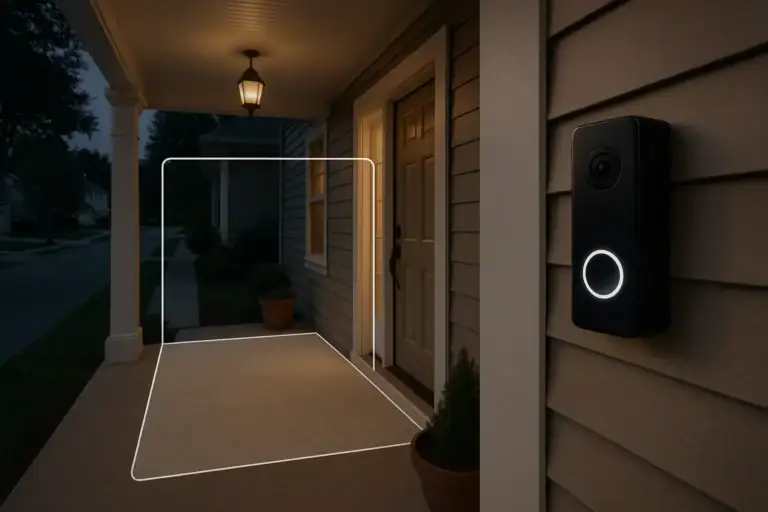
How to Set Video Doorbell Motion Zones for Fewer Alerts
How to Set Up Guest WiFi Safely (And Why It Matters) at Home
Backup Power for WiFi and Security: A Simple UPS Guide for Your Home
How to Reduce Smart Home Notification Overload With Rules and Schedules

Privacy Settings for Smart Speakers: Practical Defaults for Safer Listening

Smart Air Quality Alerts: How to Set Thresholds That Make Sense
Keep reading
About this site
Signature Home Guide publishes practical, independent home guides. We aim to be clear, helpful, and transparent.
Affiliate disclosure
As an Amazon Associate, we earn from qualifying purchases. Some links on this site may be affiliate links. If you buy through these links, we may earn a small commission at no extra cost to you. This helps support our content. Learn more.