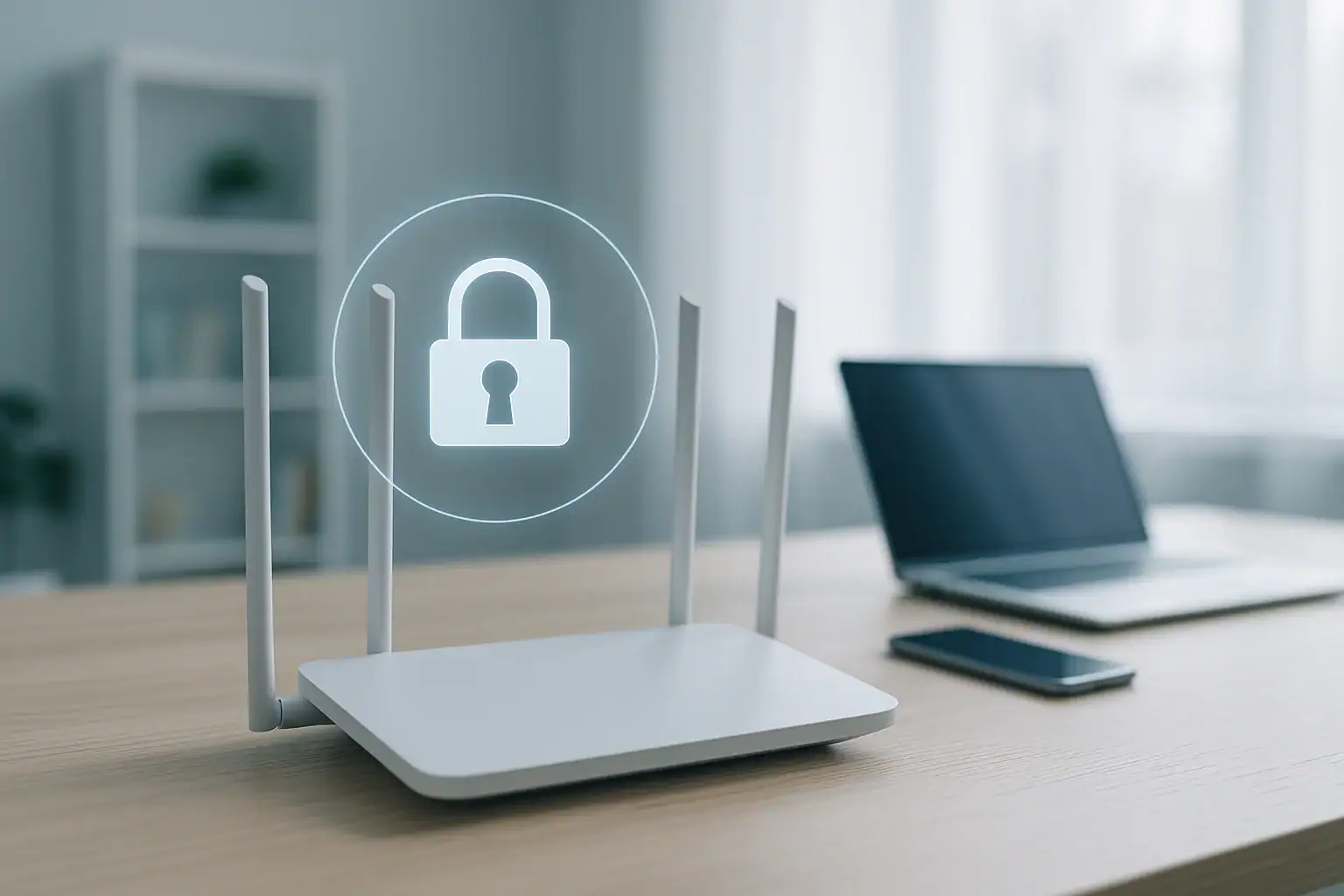
Your home WiFi router is the front door to your digital life. Every device in your home that connects to the internet passes through it: phones, laptops, smart TVs, cameras, locks, thermostats, and more. If your router is not configured securely, someone outside your home could quietly connect, spy on your traffic, or even take over smart devices. The good news is that you do not need to be a networking expert to dramatically improve your router security. A handful of key settings make the biggest difference. This guide walks you step by step through the router options that truly matter, explains what they do in plain language, and shows you how to lock down your home network without breaking your connection or slowing everything down.
Step 1: Log In to Your Router the Safe Way
Before you change any settings, you need to reach your router’s admin page. This is where all the important security options live.
Find your router’s IP address
The router’s IP address is usually printed on a label on the bottom or back of the device, often listed as “Router IP” or “Gateway.” Common values include:
- 192.168.0.1
- 192.168.1.1
- 10.0.0.1
If you do not see it on a label, you can usually find it in your internet provider’s documentation or in your computer’s network settings.
Connect directly and use a secure browser
- Connect your computer to the router using a network cable if possible. If not, connect to your home WiFi.
- Open a modern browser and type the router IP address into the address bar, then press Enter.
- You should see a login page for your router’s admin interface.
Change the default admin password immediately
The first critical setting is the router’s admin login, which controls access to all other settings.
- If you are still using the default username and password from the sticker or manual, change it right away.
- Choose a strong, unique password that is at least 14–16 characters long.
- Use a mix of upper and lower case letters, numbers, and symbols.
- A passphrase made of several random words plus numbers and symbols is easier to remember and still very strong.
Do not reuse a password from any online account. If someone guesses or finds your router’s admin password, they can change all your settings and even lock you out.
Step 2: Use Strong WiFi Security and Encryption
The next set of settings controls how your wireless network itself is protected. This is what keeps neighbors, drive‑by hackers, and random devices from joining your WiFi.
Choose the right security mode
In the wireless or WiFi settings section, look for “Security,” “Authentication,” or “Encryption.” You will see options like:
- Open (no password)
- WEP
- WPA, WPA2, WPA3, or mixed modes
For a secure home network in the US today:
- Best: Select WPA3‑Personal if all your devices support it.
- Very good: If some devices are older, choose WPA2‑Personal or a mixed mode such as WPA2/WPA3.
- Never use: Open networks, WEP, or plain WPA. These are outdated and easy to break.
Create a strong WiFi password (passphrase)
Your WiFi password, sometimes called the “pre‑shared key” or “network key,” is separate from your router’s admin password. It protects who can join your network.
- Use at least 14–16 characters; longer is better.
- A simple but strong approach: combine several unrelated words with numbers and symbols.
- Avoid names, addresses, birthdays, sports teams, or anything that can be guessed from social media.
- Do not share the password in public places or post it on visible notes near the router.
Use separate 2.4 GHz and 5 GHz networks wisely
Many routers broadcast two networks: one at 2.4 GHz and one at 5 GHz. You can often give them different names (SSIDs) and passwords.
- Use the same strong security mode (WPA2 or WPA3) on both.
- Consider using one band (often 2.4 GHz) mainly for smart home devices and the other for phones and computers.
- Keep passwords strong on both networks; do not make one “easy” just for convenience.
Step 3: Rename Your Network (SSID) Smartly
Your network name, or SSID, is what you see when you look for WiFi networks on your phone. While it does not directly encrypt anything, it can reveal clues about you if you are not careful.
What to avoid in a network name
- Do not include your last name, apartment number, or street address.
- Avoid hints about your internet provider, router model, or where you work.
- Skip confrontational names that might encourage someone to target your network.
Better SSID ideas
Choose a neutral, non‑identifying name. Some simple approaches:
- Use a random phrase or combination of words.
- Use something generic like “HomeNetwork_24” that does not point to you personally.
- If you separate networks, add a subtle tag like “_2G” or “_5G” so you can tell them apart.
Changing the SSID does not directly increase encryption strength, but it reduces personal information that might help an attacker.
Step 4: Update Your Router Firmware
Firmware is the internal software that runs your router. Just like computers and phones, routers need updates to fix security flaws and improve stability.
Why firmware updates matter
- They patch known security vulnerabilities that attackers may already be scanning for.
- They can fix bugs that cause random disconnects or slow speeds.
- They sometimes add newer security options, such as WPA3 or better firewall features.
How to check for updates
In the router admin interface, look for a section called “Firmware,” “System,” “Administration,” or “Update.” Then:
- Click the option to check for updates. Some routers can check automatically online.
- If your router requires a manual file upload, download the latest firmware from your provider or device manufacturer’s official website.
- Follow the on‑screen instructions carefully and do not unplug the router during the update.
Once the update finishes, the router may reboot. Log back in and confirm your security settings are still in place.
Step 5: Lock Down Remote Access and Management
Many routers offer ways to manage settings from outside your home network. While convenient, these features can open doors to attackers if they are not configured securely.
Disable remote administration if you do not need it
Look for settings labeled “Remote Management,” “Remote Administration,” “Web Access from WAN,” or similar.
- If you never manage your router from outside your home, turn these features off.
- If you need remote access, restrict it to secure methods such as a trusted virtual private network (VPN) instead of open web access.
Turn off Universal Plug and Play (UPnP) when possible
UPnP lets devices on your network automatically open ports through the router. That can be convenient for gaming or media servers, but it can also be abused by malicious apps.
- If you do not rely on UPnP for specific devices, disable it in the router settings.
- If turning it off breaks something you use, consider re‑enabling it only temporarily or using manual port forwarding for just the services you need.
Review port forwarding rules
Port forwarding exposes specific devices or services in your home to the internet. Misconfigured rules can give attackers a direct path in.
- Delete any port forwarding rules you do not recognize or no longer need.
- Avoid forwarding ports to sensitive devices like cameras, storage drives, or smart locks unless you fully understand the risks.
Step 6: Use a Guest Network for Visitors and Smart Devices
Mixing every device onto the same WiFi network increases risk. A guest network helps contain problems if a device is compromised or if a visitor’s phone has hidden malware.
Set up a guest WiFi network
Most modern routers allow you to create a separate guest network with its own name and password.
- Enable the guest network feature in the wireless settings.
- Give it a different SSID from your main network and a strong password.
- Turn on the option that prevents guests from accessing your main network or local devices, if available.
Decide what belongs on the guest network
- Place visitors, short‑term devices, and anything you do not fully trust on the guest network.
- Consider putting smart home devices such as plugs, bulbs, speakers, and some appliances on the guest network as well.
- Keep computers, phones, and tablets that access banking, health, or work accounts on your main secured network.
Step 7: Fine‑Tune Your Router’s Firewall and Privacy Settings
Your router likely includes a built‑in firewall that filters traffic between your home and the internet. Making sure it is enabled and configured reasonably adds another layer of protection.
Enable the router firewall
- Find the “Firewall,” “Security,” or “Network Protection” section.
- Ensure the main firewall option is turned on.
- Leave advanced options at their default values unless you understand them or have guidance from your internet provider.
Disable unnecessary features that share data
Some routers include features that send diagnostic or usage data to outside services.
- Review options like “Cloud Management,” “Analytics,” or “Usage Reports.”
- Turn off anything you do not need, especially if it shares detailed device or traffic information.
Consider DNS and content filtering
Domain Name System (DNS) settings control how your network looks up websites. Some DNS providers offer built‑in filtering to block known malicious sites.
- Check if your router allows you to choose a secure DNS service that blocks malware or phishing domains.
- If you change DNS, follow instructions from a reputable provider and test that websites still load correctly.
Step 8: Manage Device Access and Monitor Your Network
Even with strong passwords and encryption, it helps to keep an eye on what is connected to your network. This makes it easier to spot unfamiliar devices and remove them.
Review connected devices regularly
Most routers have a “Connected Devices,” “Client List,” or “Device List” page.
- Scroll through the list and identify each device by its name or type.
- If you see something you do not recognize, investigate. It could be a forgotten device, but it might also be an intruder.
- Disconnect or block unknown devices and change your WiFi password if you suspect unauthorized access.
Use MAC address controls carefully
Some routers let you limit access by device hardware addresses (MAC addresses). This can add a small barrier, but it is not foolproof.
- MAC address filtering can be bypassed by someone determined and knowledgeable.
- It can also be time‑consuming to manage for many devices.
- Use it only as an extra layer if you are comfortable with the complexity; do not rely on it as your main protection.
Step 9: Create a Simple Maintenance Routine
Router security is not a one‑time project. A few small habits can keep your home network safer over the long term without much effort.
Make a quick checklist
Every few months, set aside a few minutes to:
- Log in and check for firmware updates.
- Review connected devices and remove anything you no longer use.
- Confirm that your WiFi security mode is still WPA2 or WPA3 and that guest networks are configured correctly.
- Update passwords if you have shared them widely or suspect they may have leaked.
Know when it is time to replace your router
Even with perfect settings, very old routers may not receive security updates or support modern encryption.
- If your router is many years old and does not support WPA2 or WPA3, plan to replace it.
- If your internet provider no longer offers firmware updates or support, consider upgrading.
- When you replace a router, set it up securely from the start using the steps in this guide.
Bringing It All Together
Securing your home WiFi router does not require advanced technical skills. The most important protections come from a handful of settings that you can adjust in less than an hour: changing default admin credentials, using strong WPA2 or WPA3 encryption, choosing solid passwords, limiting remote access, enabling the firewall, and separating guest devices from your main network. Once you have these in place, your home network becomes a much harder target for casual intruders and automated attacks that scan for weak routers. Combine these steps with a simple routine of occasional checkups, and you will have a safer foundation for all your connected devices, from laptops to smart locks. Your router is the hub of your digital home; securing it is one of the most effective moves you can make for overall smart home safety.
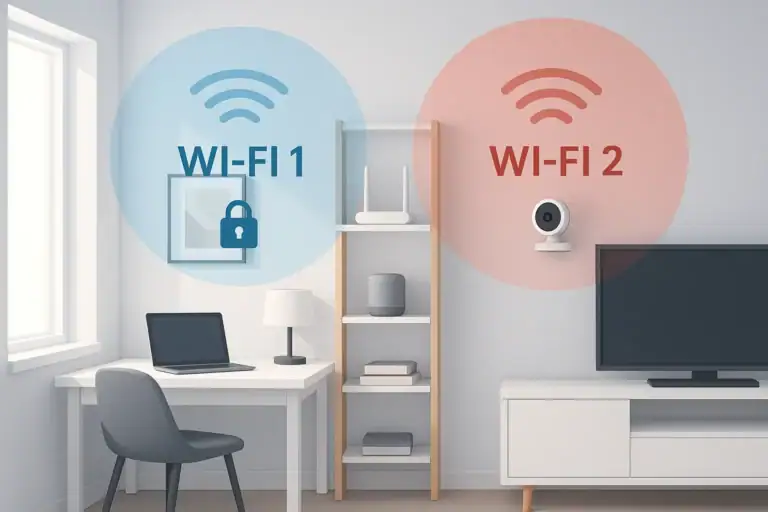 How to Set Up a Secure Home WiFi Guest Network for Smart Devices
 How to Keep Security Camera Footage Private Inside Your Home
 Smart Thermostat Vacation Mode Settings: A Complete Homeowner Guide