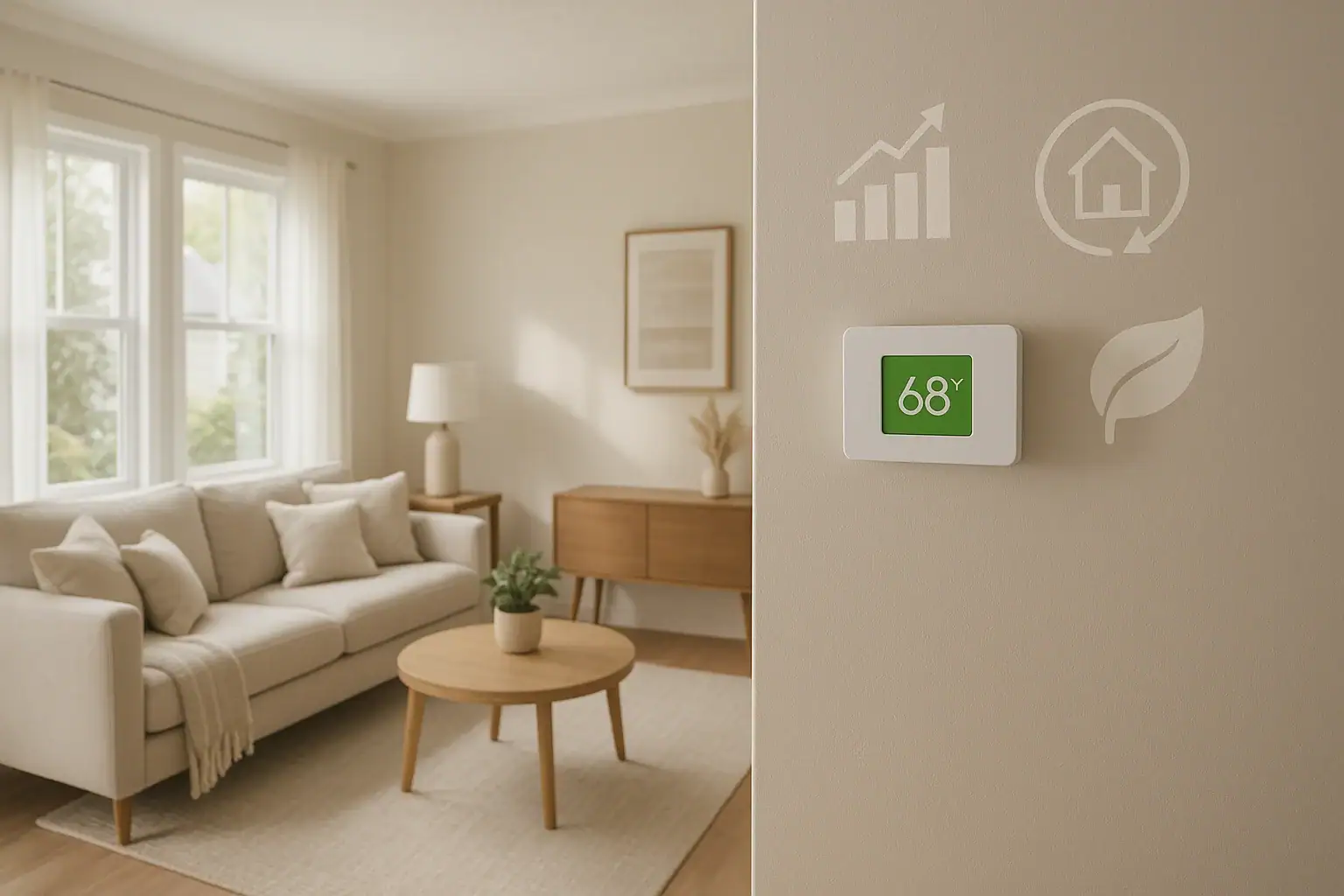
Smart thermostats promise lower energy bills and a more comfortable home, but many people worry they will end up shivering in winter or sweating in summer. The good news is that you can absolutely automate energy savings without sacrificing comfort. The key is to use the thermostat’s automation tools in a thoughtful way, based on your real routine and your home’s unique quirks. In this guide, you will learn how to set up schedules, use geofencing, fine‑tune temperature ranges, and combine your thermostat with other smart home devices. You will also see simple comfort safeguards so your home never feels too hot or too cold while you save money.
Why Smart Thermostats Help You Save Without Sacrifice
A smart thermostat is more than a digital temperature dial. It is a small computer that can learn your habits, track your energy use, and adjust heating and cooling automatically. Instead of running your system at the same temperature all day, it can reduce heating or cooling when you are away and bring your home back to a comfortable level before you return.
Energy savings come from:
- Automatic setbacks: Lowering heat or raising cooling when you are asleep or away.
- Smarter timing: Starting heating or cooling early enough so you feel comfortable at the right time, not after a delay.
- Data and insights: Showing how changes in temperature settings affect your monthly use.
When you pair these tools with realistic comfort limits, you can reduce waste without feeling like you live in a refrigerator or an oven.
Step 1: Decide Your Realistic Comfort Range
Before you touch any settings, decide what “comfortable” actually means for you and your household. Many people pick a single temperature and leave it there, but your body can tolerate a small range without noticing much difference.
Recommended Starting Points
Energy experts often suggest:
- Winter (heating): Around 68°F when you are home and awake, 60–65°F when you are asleep or away.
- Summer (cooling): Around 76–78°F when you are home and awake, 80–82°F when you are asleep or away.
These are just starting points. If you run cold or hot, adjust by a degree or two. The goal is a small but meaningful difference between your “home” and “away” settings.
Involve Everyone in the Home
Comfort is personal. To avoid thermostat battles:
- Ask each person what temperatures feel too cold, too hot, and “just right”.
- Agree on a normal range (for example, 67–70°F in winter, 75–78°F in summer).
- Decide on a maximum setback for sleep and away times that everyone can live with.
Once you have a range, you can use it as a guardrail while you automate your thermostat.
Step 2: Build a Basic Schedule Around Your Routine
The schedule is the heart of smart thermostat automation. Instead of constant manual changes, you set temperature targets for different times of day. The thermostat does the rest.
Map Your Daily Pattern
Take a few minutes to sketch your weekday and weekend routine:
- When you usually wake up
- When the last person leaves the house
- When the first person returns
- When you usually go to bed
These four points are enough to build a simple but effective schedule.
Example Winter Schedule (Heating)
- Wake (6:30 a.m.): 68–70°F so the home is warm when you get out of bed.
- Leave (8:30 a.m.): 62–64°F to avoid heating an empty house.
- Return (5:00 p.m.): 68–70°F by the time you walk in the door.
- Sleep (10:30 p.m.): 64–66°F for comfortable sleeping and savings.
Example Summer Schedule (Cooling)
- Wake (6:30 a.m.): 76–78°F.
- Leave (8:30 a.m.): 80–82°F.
- Return (5:00 p.m.): 76–78°F.
- Sleep (10:30 p.m.): 78–80°F if you can tolerate it, or keep it steady if you sleep hot.
Use Preheating and Precooling
Most smart thermostats can start heating or cooling before the set time so the home reaches your target temperature right on schedule. Look for options like:
- “Early on” or “preheat” for heating season
- “Precool” or “smart response” for cooling season
Turn these features on so you never wait for the house to catch up after you wake up or arrive home.
Step 3: Use Geofencing So You Never Heat or Cool an Empty Home
Geofencing uses your phone’s location to tell the thermostat whether you are home or away. When everyone leaves a certain radius around your home, the thermostat can automatically switch to an energy‑saving mode. When someone heads back toward home, it can start warming or cooling again.
How to Set Up Geofencing Safely
While the exact steps vary, the general process looks like this:
- Install the thermostat’s app on each household member’s phone.
- Enable location permissions in the app settings.
- Set a radius around your home, such as 1–3 miles.
- Choose what the thermostat should do when the last person leaves and when the first person arrives.
Comfort‑First Geofencing Tips
- Use gentle setbacks: Do not drop or raise the temperature too far when you leave. Aim for a 4–8 degree difference from your comfort setting.
- Account for travel time: If you have a short commute, keep the radius smaller so the system starts earlier.
- Include kids and caregivers: If others come and go, add them to the geofence so the home is comfortable when they arrive.
Geofencing works well with a basic schedule. The schedule handles your usual routine, while geofencing corrects for days when you leave early, stay late, or come home at odd times.
Step 4: Use Temperature Ranges Instead of a Single Number
Many smart thermostats let you set a range instead of one exact temperature. For example, you might choose 67–70°F in winter or 75–78°F in summer. The thermostat will keep your home within that band, turning the system on only when needed.
Why Ranges Improve Comfort and Savings
- Fewer short cycles: The system runs a bit longer but less often, which can feel more stable and use less energy.
- Natural tolerance: Most people do not notice a 1–2 degree change, so you stay comfortable.
- Better humidity control: Longer cooling cycles can help reduce indoor humidity in summer.
How to Choose Your Range
Start with a narrow band and widen it slowly:
- Begin with a 2°F range around your favorite temperature.
- After a week, widen it by 1°F on either side if you still feel comfortable.
- Stop widening once anyone in the home starts to notice discomfort.
This gradual approach lets you find the sweet spot between comfort and savings.
Step 5: Combine Room Sensors and Fans for Even Comfort
One common complaint is that the room with the thermostat feels fine while bedrooms or upstairs spaces feel too hot or cold. Smart thermostats can often work with additional room sensors, and you can also use ceiling or portable fans to even out temperatures.
Using Room Sensors
If your thermostat supports remote sensors, you can:
- Place sensors in the rooms you use most, like bedrooms and the main living area.
- Tell the thermostat to average temperatures from several rooms.
- Set different priorities for different times of day, such as bedrooms at night and the living room during the day.
This keeps the rooms you care about most within your comfort range, not just the hallway where the thermostat is mounted.
Using Fans the Smart Way
Fans do not change the air temperature, but they change how warm or cool you feel through air movement:
- Summer: Use ceiling fans turning counterclockwise to create a breeze. You can often raise the thermostat 2–4°F and feel just as cool.
- Winter: Run ceiling fans on low and clockwise to gently push warm air down from the ceiling.
- Smart plugs: If you use portable fans, plug them into smart plugs and create routines that turn them on when the thermostat reaches certain setpoints.
By combining fans with modest thermostat adjustments, you can save energy while your body still feels comfortable.
Step 6: Create Routines for Sleep, Vacations, and Special Situations
Beyond your daily schedule, smart thermostats can use routines or scenes to handle special cases. These one‑tap or automated settings help you save more without constant tweaking.
Sleep Routine
Many people sleep better in a slightly cooler room. You can:
- Lower winter heating by 2–4°F at bedtime.
- Raise summer cooling by 2°F if you sleep comfortably at a warmer temperature.
- Combine with bedroom fans or breathable bedding to maintain comfort.
Vacation or Away Routine
When you are gone for more than a day, deeper setbacks can save a lot without risk to your home:
- Winter: Set heating no lower than around 55°F to protect pipes and pets.
- Summer: Set cooling around 82–85°F to avoid excessive heat buildup and protect electronics and furnishings.
- Use the app to return to normal comfort settings a few hours before you arrive home.
Work‑From‑Home or Hybrid Days
If your schedule changes often, you can:
- Create a “home office” routine that keeps your workspace comfortable during the day.
- Use geofencing or manual triggers on days you go into the office so the home is not heated or cooled unnecessarily.
Step 7: Turn On Energy Reports and Adjust Slowly
Most smart thermostats offer energy reports that show how long your system runs each day and how your settings compare to past months. These reports are powerful tools for fine‑tuning comfort and savings.
How to Use Energy Reports
- Review your heating and cooling runtime weekly or monthly.
- Note any days with unusually long runtimes and what the weather was like.
- Look for patterns, such as high usage on weekends or late at night.
Make Small, Gradual Changes
To avoid discomfort, change only one setting at a time:
- Adjust a setpoint by 1°F and live with it for a few days.
- If everyone still feels fine, adjust another 1°F and observe again.
- Stop once you reach the edge of your comfort range.
This slow approach lets your body adapt and prevents the feeling that the home is suddenly too hot or too cold.
Comfort Safeguards: Avoid Common Mistakes
Automation should make life easier, not frustrating. A few simple safeguards keep your home comfortable while your thermostat works in the background.
Do Not Overdo Setbacks
Large temperature swings can backfire. Dropping the heat too low or raising cooling too high may cause:
- Long recovery times when you return home
- Increased strain on your heating or cooling system
- Uncomfortable periods where the home feels extreme
Generally, aim for 4–8°F setbacks for daily use and save deeper setbacks for longer trips.
Use “Hold” Sparingly
Most smart thermostats have a “hold” feature that locks in a temperature. This is useful for temporary comfort, but if you leave it on, it can override your efficient schedule for days.
- Use “hold until” or “temporary hold” instead of permanent hold.
- Set an end time, such as the next schedule change or bedtime.
Watch Out for Heat Sources Near the Thermostat
Lamps, electronics, or direct sunlight near the thermostat can trick it into thinking your home is warmer than it really is. If possible:
- Keep heat‑producing devices away from the thermostat.
- Use room sensors in areas where you spend the most time.
- Close blinds or curtains that shine direct sun onto the thermostat during peak hours.
Connect Your Thermostat to a Larger Smart Home System
Smart thermostats become even more powerful when they are part of a broader smart home setup. You can create automations that respond to doors, windows, occupancy sensors, and more.
Useful Energy‑Saving Automations
- Open window detection: If a window or door is left open for several minutes, the thermostat can switch to an eco mode to avoid wasting heating or cooling.
- Occupancy sensors: Motion sensors in key rooms can help confirm whether someone is home, backing up geofencing.
- Voice routines: Simple commands like “goodnight” or “leaving” can trigger thermostat setbacks, turn off lights, and lock doors at the same time.
When building these automations, always keep comfort in mind. Test each routine for a few days and adjust any settings that feel too aggressive.
When to Revisit Your Settings
Your ideal thermostat setup will change over time. New jobs, school schedules, or even a new pet can shift when you are home and what feels comfortable.
Plan to review your settings:
- At the start and end of each heating or cooling season
- After major routine changes, such as a new work schedule
- When you notice more manual thermostat changes than usual
Use each review to adjust schedules, geofencing, and ranges so your automation always matches real life.
Bringing It All Together
Automating energy savings with a smart thermostat does not have to mean living in an uncomfortable home. By defining a realistic comfort range, building a thoughtful schedule, using geofencing, and combining room sensors and fans, you can keep your home feeling just right while your energy use drops in the background.
Start with small changes, watch your comfort and your energy reports, and adjust gradually. Over a few weeks, you will find the balance that works for your household. With the right setup, your smart thermostat becomes a quiet partner that keeps you comfortable, protects your budget, and supports a more efficient home.
If you want to explore more ways to integrate your thermostat with other smart home and safety devices, you can learn about broader smart home strategies and how they work together to create a more efficient, secure living space.
 How to Keep Security Camera Footage Private Inside Your Home
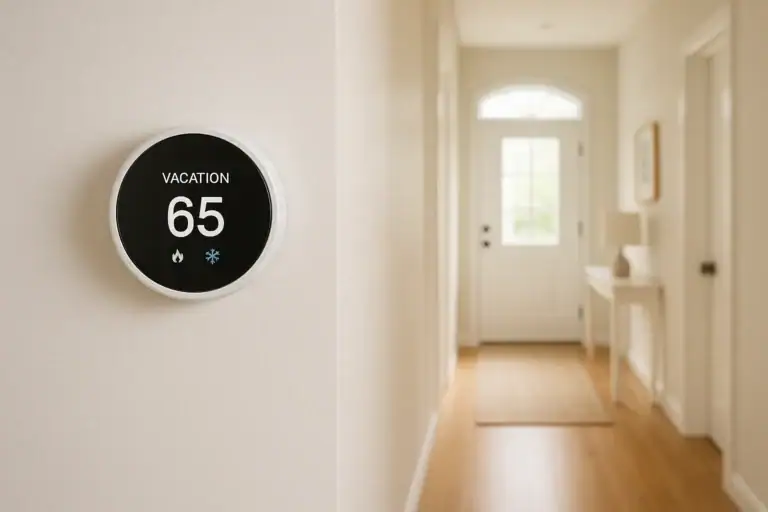 Smart Thermostat Vacation Mode Settings: A Complete Homeowner Guide
 Smart Lock Auto-Lock Settings: Safe Defaults That Prevent Lockouts