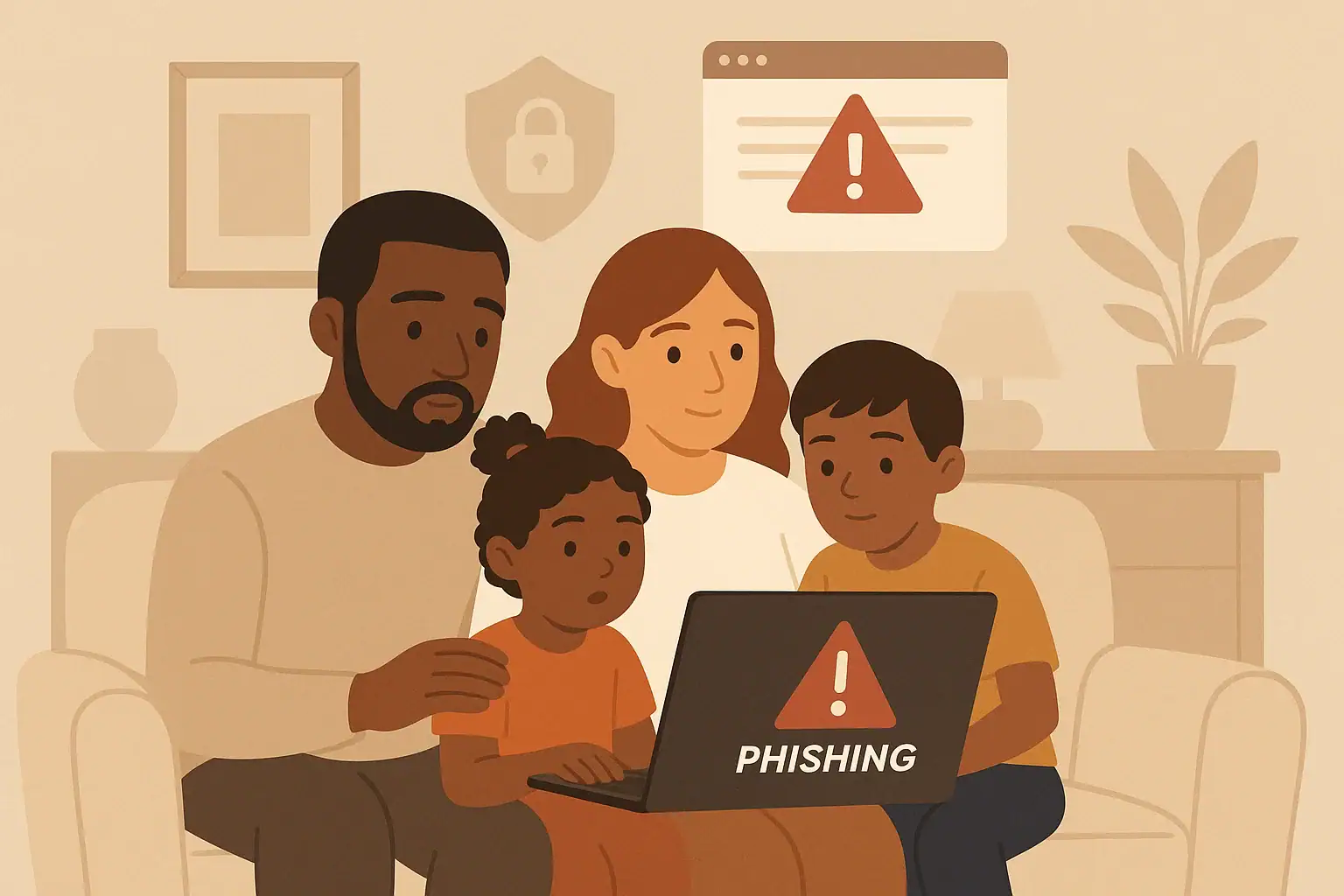
Family life is more connected than ever. Kids do homework online, adults manage banking and healthcare through websites and apps, and smart devices sit in nearly every room. All of this convenience also opens the door to online risks. The good news is that you do not need to be a technical expert to protect your household. By learning a few cybersecurity basics, especially around phishing and safe browsing, you can dramatically lower your family’s chances of being scammed or hacked.
This guide walks through practical, easy-to-understand steps you can take right away. You will learn how to recognize phishing attempts, set simple family rules for safe browsing, and build habits that help everyone—from young kids to grandparents—stay safer online. Use this as a starting point for regular conversations about digital safety at home.
Why Cybersecurity Matters for Every Family
Cybersecurity is not just an issue for big companies. Families are common targets because attackers know that people are busy, distracted, and often reusing passwords. A single careless click can expose personal information, financial details, or even access to smart home devices.
Common Risks Families Face Online
- Phishing emails and messages: Fake messages that try to trick you into sharing passwords, account numbers, or other personal details.
- Malicious websites: Sites that quietly install harmful software or steal information when you visit or download from them.
- Account takeovers: Attackers guessing or stealing passwords to get into email, school portals, social media, or banking accounts.
- Identity theft: Using stolen personal information to open accounts, apply for credit, or impersonate someone in your family.
- Inappropriate or unsafe content: Sites and links that are not suitable for children or that encourage unsafe behavior.
Understanding these risks helps you talk with your family about why safe online habits matter, without using fear or technical jargon.
What Is Phishing?
Phishing is one of the most common online threats families face. It is a trick: someone pretends to be a trusted person or organization to get you to click a link, open an attachment, or share information.
How Phishing Works
Phishing can appear in many forms, including:
- Email: Messages that look like they are from a bank, school, delivery service, or even a friend, asking you to act quickly.
- Text messages: Short messages with links that claim you missed a delivery, won a prize, or must fix an urgent problem.
- Social media messages: Direct messages from hacked accounts or fake profiles sharing “must-see” links or asking for help.
- Phone calls and voicemails: Callers pretending to be from a company or government office, pushing you to give information or visit a website.
The goal is always the same: to get you to react quickly without thinking, so you click or share something you normally would not.
How to Spot Phishing Attempts
Teaching your family to pause and check for warning signs can stop most phishing attempts. Make these red flags part of your household’s routine whenever anyone gets a message with a link or attachment.
Red Flags in Emails and Messages
- Unexpected urgency: Messages that say “act now,” “immediate action required,” or “your account will be closed today.”
- Requests for personal information: Any email or text asking for passwords, Social Security numbers, codes, or full payment details.
- Spelling and grammar issues: Awkward wording, misspellings, or odd sentence structure can be a clue something is off.
- Generic greetings: Messages that say “Dear customer” instead of using your name, especially for important accounts.
- Suspicious links: Links that look slightly wrong, have extra words or numbers, or do not match the supposed sender.
- Unexpected attachments: Files you were not expecting, especially if they claim to be invoices, documents, or pictures.
How to Check a Link Safely
Before clicking any link, teach family members to:
- Hover on computers: Move the mouse over the link (without clicking) to see the real address in the bottom corner of the browser or email window.
- Press and hold on phones: Gently press and hold the link to preview the address before opening it.
- Type it yourself: For important accounts, open a new browser tab and type the website address yourself instead of clicking a link.
If anything about the link or message feels off, do not click. It is always safer to visit the website directly or call the organization using a number you already trust.
Safe Browsing Basics for the Whole Family
Safe browsing is about how you and your family move around the internet. A few simple habits can greatly reduce the risk of landing on harmful or fake sites.
Use Secure Connections
Before entering any personal information on a website, check for:
- Address starts with “https”: The “s” stands for “secure” and means the connection between your browser and the site is encrypted.
- Lock icon: A small lock icon near the web address indicates a secure connection.
These signs do not guarantee a site is safe, but if they are missing, do not enter sensitive information.
Be Careful with Downloads
Downloads are a common way for harmful software to get onto devices. Set these rules at home:
- Only download apps, games, or files from official app stores or trusted websites.
- Never download free versions of paid software from random sites.
- Ask an adult before kids download anything new on shared devices.
- Close pop-ups that offer free prizes, updates, or “speed boosters.”
Recognize Unsafe Websites
Teach your family to be cautious with sites that:
- Have many pop-up windows or flashing banners.
- Ask for personal information right away.
- Look cluttered, with many unrelated ads or low-quality images.
- Offer deals that seem too good to be true.
When in doubt, leave the site and search for the information or product from a more established source.
Creating Simple Family Rules for Online Safety
Clear, consistent rules make it easier for everyone to stay safe. Involve your kids in creating these rules so they understand the reasons behind them.
Sample Family Cybersecurity Rules
- Think before you click: No one clicks links or opens attachments from unknown or unexpected messages.
- Ask when unsure: Kids and teens agree to ask an adult before entering personal information or downloading something new.
- Use strong passwords: Each important account gets its own strong password that is not reused elsewhere.
- Keep information private: No sharing of full names, addresses, or school details on public sites or with strangers online.
- Check with a second source: For urgent messages about money, deliveries, or accounts, verify using a different method, such as calling the company.
Make Rules Age-Appropriate
Adjust expectations based on age and experience:
- Young children: Use “ask first” rules for new sites, videos, and games. Keep devices in shared spaces.
- Preteens: Teach them to recognize phishing and to bring questionable messages to an adult.
- Teens: Involve them in setting up security on their own devices and talk about scams targeting young adults.
- Older adults in the home: Offer patient, nonjudgmental help with email and account security, and review common scam examples together.
Protecting Accounts with Strong Habits
Even with safe browsing and phishing awareness, weak account security can leave your family exposed. A few habits go a long way.
Use Strong, Unique Passwords
Encourage everyone to create passwords that are:
- At least 12 characters long.
- A mix of letters, numbers, and symbols.
- Not based on names, birthdays, or simple words.
Explain that using the same password everywhere is like using one key for your house, car, and mailbox. If someone copies that key, they can open everything.
Turn On Extra Sign-In Protection
Many important accounts offer an extra step when signing in, such as a code sent by text or generated by an app. This adds a layer of protection even if a password is stolen. Help family members turn this on for:
- Email accounts
- Banking and payment accounts
- School portals and important work accounts
- Social media accounts used to communicate with friends and family
Talking to Kids About Phishing and Safe Browsing
Open, ongoing conversations are more effective than one-time lectures. Keep the tone calm and practical so kids feel comfortable asking questions.
Explain Scams in Simple Terms
You can describe phishing as:
- “A trick where someone pretends to be a person or company you trust to get your information.”
- “Like a stranger knocking on the door and saying they are from a company, but they are not really.”
Use examples they might see, such as fake messages about game rewards, free gift cards, or school-related notices.
Practice Together
Look at sample emails or messages together and ask:
- Who is this message from?
- What are they asking you to do?
- Is there any pressure to act quickly?
- Does anything look or feel unusual?
Praise kids for bringing suspicious messages to you, even if they are not sure. You want them to feel safe asking for help.
Safe Browsing on Shared and Smart Home Devices
Many families share devices such as tablets, laptops, and smart TVs. These shared devices can become a weak point if they are not managed carefully.
Set Up Separate Profiles When Possible
If your devices allow it, create individual profiles for adults and children. This helps you:
- Control what apps and sites kids can use.
- Keep work and financial information separate from general browsing.
- Limit changes to settings and downloads on kids’ accounts.
Be Careful with Voice Assistants and Smart Screens
Smart speakers and screens can access calendars, shopping lists, and sometimes even messages. To keep them safer:
- Review what information the device can access.
- Limit who can make purchases or control smart locks and other important devices.
- Talk with kids about what they should and should not ask these devices to do.
What to Do If Someone Clicks a Suspicious Link
Mistakes happen, especially when people are tired, rushed, or distracted. Having a clear plan reduces panic and damage if someone in your family clicks something they should not.
Immediate Steps to Take
- Stay calm: Reassure the person who clicked that you will handle it together.
- Disconnect from the internet: Temporarily turn off Wi-Fi or unplug the network cable if you suspect harmful software may have been installed.
- Do not enter information: If a fake site is asking for login details or payment information, close it right away.
- Run a security scan: Use your device’s built-in tools or trusted security software to scan for problems.
Protect Accounts and Information
If you entered a password or other details on a suspicious site:
- Change the password for that account immediately.
- Change passwords on any other accounts where you used the same or similar password.
- Turn on extra sign-in protection if it is not already enabled.
- Watch for unusual activity, such as password reset emails or login alerts.
If financial information may have been exposed, contact your bank or card issuer using the number on the back of your card or from an official statement.
Making Cybersecurity a Regular Family Habit
Cybersecurity is not a one-time project. As your kids grow and technology changes, your approach should grow and change too. The goal is to build habits that become as natural as locking the front door at night.
Simple Ongoing Practices
- Set a regular time, such as once a month, to review important account passwords and settings.
- Talk about any new apps, games, or websites your kids are using and review their safety together.
- Share stories (without blame) when you receive suspicious messages so everyone learns from them.
- Encourage family members to ask for a second opinion before responding to anything that feels unusual or urgent.
By focusing on phishing awareness and safe browsing, you give your family practical tools to navigate the online world with more confidence. You do not need to understand every technical detail. Consistent, simple steps and open conversations are enough to create a safer digital environment at home.
For more ways to protect your connected home, including smart devices and home networks, explore additional smart home and safety resources and update your family’s plan as technology evolves.
 Password Manager Basics for Families at Home: A Simple Guide
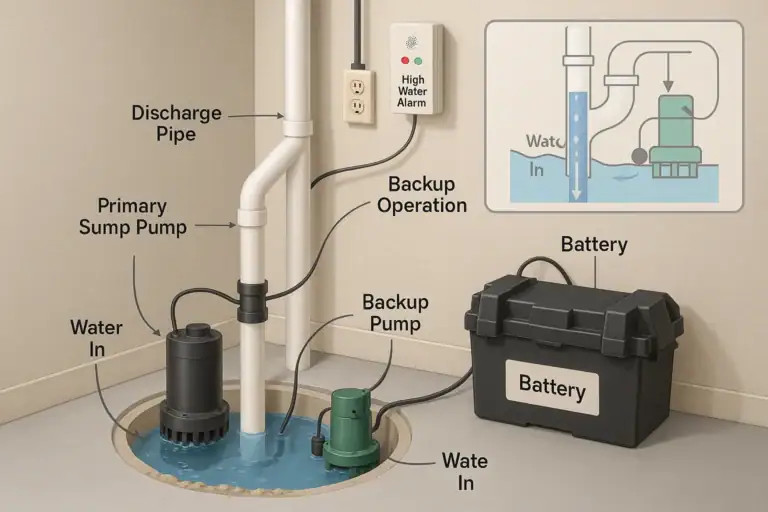 Sump Pump Alarm and Battery Backup Basics: A Practical Homeowner Guide
 Security Camera Placement Without Blind Spots: A Practical Homeowner’s Guide