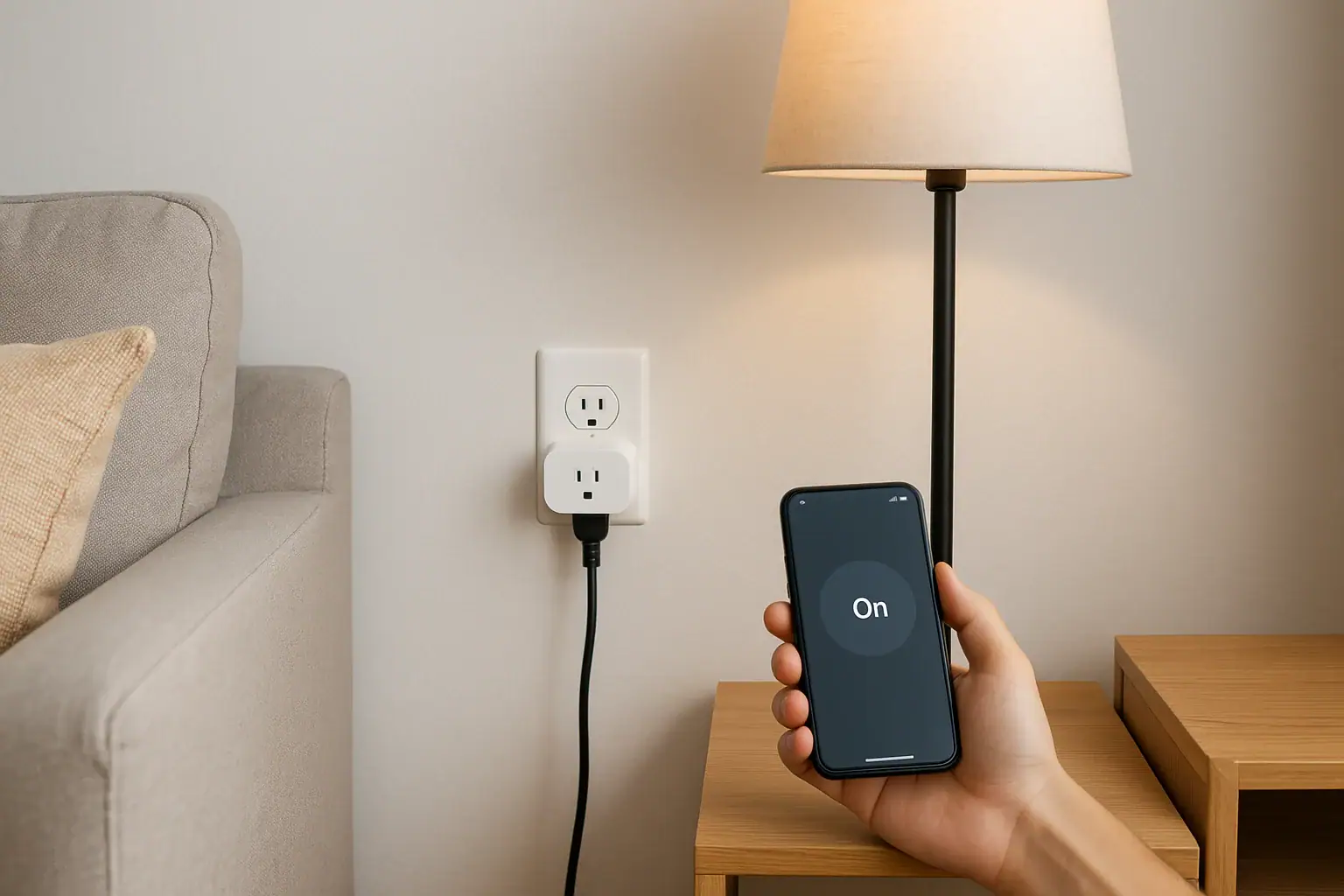
Quick answer: A smart plug is a removable device that turns power to a plugged-in item on or off. Depending on its model, you may use a button, an app, or a compatible smart-home platform. It controls power availability, not the connected item’s own settings or buttons.
How a smart plug works
A smart plug sits between a wall outlet and a plug-in device. It uses an internal switching mechanism to make power available to that device or stop it. Depending on the model and its setup, you may control it with a button on the plug, the manufacturer’s app, or a compatible smart-home platform. Philips Hue describes its smart plug as a way to remotely control power to a connected device.
A smart plug does not press an appliance’s controls, choose a mode, or change its settings. For example, a lamp with a mechanical switch left on may illuminate when the plug restores power. A device that needs its own button press after an outage may stay off. Check the connected device’s instructions and test its behavior before relying on a smart plug for a routine.
Smart plug versus an outlet timer
A conventional outlet timer switches power according to programmed times. A smart plug may also offer app control, editable schedules, voice control, automations, status information, or energy data. Those features are not standard across all models, and some depend on a home network, account, hub, platform, or internet service.
Both products control outlet power. Neither changes a device’s electrical requirements or guarantees that the connected device will restart after power returns.
Smart plug features and dependencies
| Feature | What it may depend on | What to check |
|---|---|---|
| Local button | Power at the outlet and a functioning plug | Button actions, indicator meanings, and any button lockout in the manual |
| App control at home | The plug’s protocol, app, and often the home network | Supported Wi-Fi band, account requirement, phone permissions, and whether control is local or cloud-based |
| Hub or controller | The plug’s protocol and chosen platform | Whether it connects directly or needs a bridge, Matter controller, or Thread border router |
| Schedules | The plug, a hub, or a cloud service | Where schedules are stored and what the manual says about an internet outage |
| Voice control | A compatible voice platform and often linked online accounts | Exact platform support, account-linking steps, and any hub requirement |
| Energy monitoring | A model that includes monitoring hardware and supporting software | Whether the feature is included and whether history or reports require an account |
| Internet loss | The plug’s local design, home network, and powered controllers | Button, app, schedule, platform, and voice behavior separately |
What to check before setting up a smart plug
Network and platform requirements
Do not assume every smart plug uses Wi-Fi or supports the same Wi-Fi band. Some products use Wi-Fi, while others may use Matter, Thread, Zigbee, Bluetooth, or a manufacturer bridge. TP-Link’s Kasa setup guidance for covered products calls for the Kasa app, a TP-Link account, and 2.4 GHz Wi-Fi, but that is not a rule for every smart plug. Its instructions also direct users to choose the exact model during setup. Read the current model-specific Kasa setup guidance or the support material for your own product.
Platform labels can have additional requirements. Google says that its Matter setup requires a compatible Matter hub or controller, and that a Thread Matter device also needs a Thread border router. Google also explains that Matter commands can travel over the local home network in supported setups. See Google’s Matter preparation guidance for its current requirements. Apple states that remote control of HomeKit or Matter accessories requires a home hub in its accessory troubleshooting guidance.
Account and privacy details
Some products require an account before initial setup or remote use. Before creating one, review the current privacy disclosure and decide which optional integrations you want to enable. TP-Link’s Kasa privacy policy, for example, describes processing associated with account registration, device binding, personalized settings, location-dependent features, and support logs.
Cloud-dependent features can also change over time. Belkin’s Wemo support notice says cloud and app support for affected Wemo products ended on January 31, 2026, ending remote access and Alexa or Google integrations; specified products already configured with HomeKit may continue to have local control. That example does not predict another brand’s support plans, but it is a reason to distinguish local controls from cloud features before buying or setting up a plug.
Outlet and connected-device information
Read the exact model’s manual for its electrical rating, location designation, outlet requirements, operating environment, and restrictions. Then check the connected device’s label and instructions. A plug that physically fits does not establish electrical or operational compatibility.
Do not use an indoor-only product outdoors or in a wet location. If ratings, restrictions, outlet condition, or fit are unclear, do not connect the device until the manufacturer or a qualified electrician can clarify the issue.
Manual-first smart plug setup checklist
- Identify the exact product. Record the model number and hardware version from its label without opening the case.
- Find current product instructions. Use the manual and support page for that exact version rather than directions for a similar-looking plug.
- Check recall information. Search the model number in current manufacturer and CPSC recall notices. A recall applies to the products named in it, not to all smart plugs. For example, the CPSC’s 2023 Emporia recall covered specified North America smart plugs that were not adequately grounded.
- Confirm compatibility. Verify the location designation, electrical limits, outlet fit, connected-device restrictions, network or protocol requirements, and platform or hub requirements.
- Review account and privacy choices. Determine what is necessary for basic setup and what is optional for remote access, voice control, or integrations.
- Use the official setup path. If the manual requires an app, obtain it from the phone’s official app store and follow the product’s current pairing instructions.
- Install as directed. Connect the plug only to an appropriate outlet as its manual directs. Do not open, modify, rewire, or attempt to repair it.
- Add and name the exact model. Follow its documented button and indicator sequence, then choose a clear name such as “Office Floor Lamp.”
- Install offered updates carefully. Follow the manufacturer’s instructions and warnings for any firmware update.
- Test controls one at a time. Test the physical button first, then the app, any schedule, and any linked platform.
- Test the connected device. Switch the plug off and back on, then confirm whether the device returns in the state you expect.
- Record outage behavior. Consult the manual and, when convenient, test what remains available when internet service is unavailable without opening electrical equipment or changing wiring.
What may work without internet service
An internet outage is not necessarily the same as a Wi-Fi or power outage. If the plug, router, and local network still have power, some model-specific local controls may remain available. If the Wi-Fi network or electrical power is also unavailable, fewer controls can work.
- Physical button: Check the manual, but this may remain available while the outlet and plug have power.
- Manufacturer app: Local app control may be available, limited, or unavailable depending on the product’s design.
- Schedules: Whether they continue depends on where they are stored. TP-Link says Kasa timers and schedules are stored locally and can continue during an internet outage. Do not apply that behavior to another brand without its documentation.
- Voice control: It may require internet access and linked online accounts. TP-Link describes its Kasa voice-assistant control as cloud-to-cloud.
- Supported Matter control: Google documents that Matter commands can travel locally, but the required controller, local network, and powered equipment must be available.
- Remote control away from home: This generally needs internet access and the relevant manufacturer or platform service.
For a practical check, consult the router and plug documentation before deliberately testing an outage. Then check the button, app, schedule, platform, and voice control separately. Do not assume a result from one control method applies to another.
Hypothetical example: setting up a floor lamp
Assume an indoor floor lamp has a mechanical on/off switch, both manuals allow the intended use, and the smart plug supports the home’s network. This is an example only; it does not establish that another lamp or appliance is compatible.
- Set the lamp’s own mechanical switch to on.
- Use the smart plug’s local button to remove and restore power. If the lamp follows the power supply, it should turn off and on with the plug.
- Follow the exact model’s app or platform instructions and name the plug “Office Floor Lamp.”
- Test local button control and app control separately.
- If the manual documents a scheduling feature, create a temporary schedule and observe its operation.
- Check the manual before testing what remains available during an internet interruption.
If the lamp does not return to the desired state when power is restored, its control design may not suit this use. A smart plug cannot override that behavior.
When to stop using the plug
Stop using a smart plug if it is damaged, fits loosely, becomes unusually warm, becomes discolored, or gives off an odor. The CPSC home electrical safety checklist warns that loose-fitting plugs and improperly operating outlets can contribute to overheating, arcing, fire, or shock hazards.
Do not bend blades to improve fit or attempt an internal repair. Disconnect the product if that can be done safely, stop using the affected outlet, and contact the manufacturer or a qualified electrician as appropriate. Visit the Smart Home & Safety guide for more home-device planning information.
 What Is a Smart Thermostat and How Does It Work?
 How to Reset a Smart Thermostat Safely
 How to Install a Smart Thermostat Safely