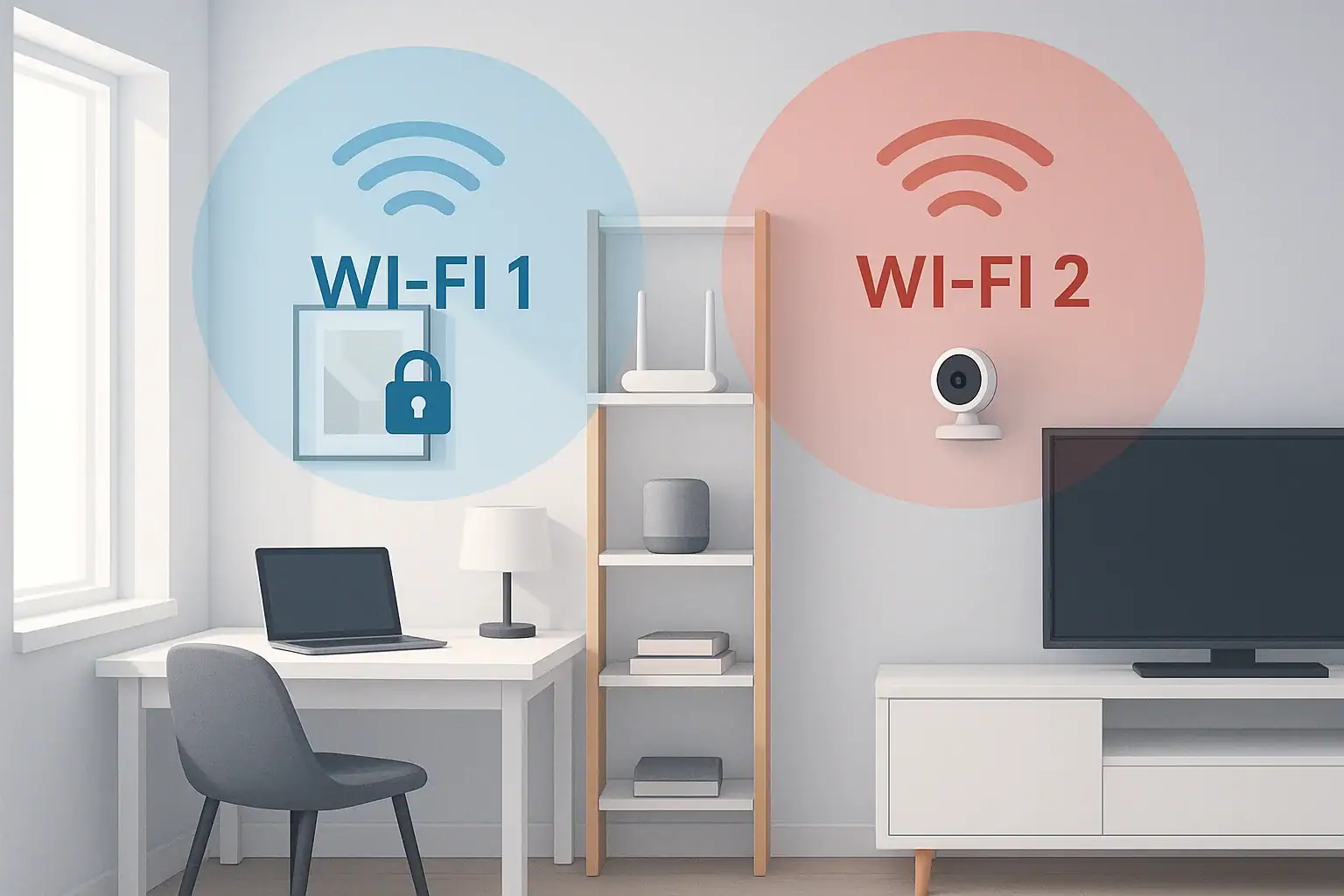
Smart speakers, cameras, doorbells, TVs, and plugs all rely on your home WiFi. While they are convenient, they can also become weak points in your home network if they are not isolated and secured. A dedicated home WiFi guest network for smart devices helps protect your personal data, keeps your main devices safer, and can even improve performance. This guide walks you through why you should separate smart devices from your primary WiFi, how to plan your network, and the step-by-step process to set up and maintain a secure guest network in a typical US home. You do not need to be a networking expert; you just need access to your router settings and a bit of patience.
Why Use a Guest Network for Smart Devices?
Most smart home gadgets connect to the internet constantly, send data to remote servers, and may not receive regular security updates. That makes them more vulnerable than your laptop or phone.
Putting smart devices on a guest network creates a barrier between them and your personal devices.
Key benefits of a guest network
- Protects personal data: If a smart device is compromised, it is harder for an attacker to reach your computers, phones, and storage drives on the main network.
- Limits device-to-device access: Many routers let you block devices on the guest network from seeing each other or from seeing the main network.
- Improves performance: Separating high-traffic devices, such as smart TVs and cameras, can reduce congestion on your primary WiFi.
- Makes troubleshooting easier: If something goes wrong, you can quickly see whether the problem is on the main network or the smart device network.
- Simplifies access control: You can change passwords or block devices on the guest network without touching your main WiFi.
Plan Your Smart Device Guest Network
Before you log into your router, take a few minutes to plan how you want your networks to work. This will make setup smoother and help avoid confusion later.
Decide how many networks you need
Most homes do well with three logical groups:
- Main network: Laptops, phones, tablets, and work devices.
- Smart device network: Cameras, doorbells, smart speakers, TVs, plugs, lights, and appliances.
- Visitor guest network (optional): Friends and family who need temporary internet access.
You can combine the smart device and visitor networks if your router only supports one guest network, but keeping them separate is ideal when possible.
Choose clear network names (SSIDs)
Use names that make it obvious which network is which, without revealing personal information such as your last name or address.
- Main network example: Home-Main
- Smart device network example: Home-Smart
- Visitor guest network example: Home-Guest
Avoid including your full name, apartment number, or other identifying details in the network name.
Decide which devices go where
As a rule of thumb:
- Main network: Anything that stores or accesses sensitive data, such as work laptops, personal computers, phones, and network storage.
- Smart device network: Any device that is always on, connects to the internet, and does not need direct access to your files.
- Visitor network: Devices belonging to guests or short-term renters.
Write down a list of your smart devices so you can move them to the guest network during setup.
Access Your Router Settings Safely
To create a guest network, you need to log into your router or gateway. This is usually done through a web browser or a mobile app provided by your internet service or router manufacturer.
Find your router login details
Common ways to access your router:
- Type the router address (often something like 192.168.0.1 or 192.168.1.1) into a web browser while connected to your home WiFi.
- Use the official router or gateway app recommended by your internet service.
- Check the label on the router for the default login address, username, and password.
If you still use the default router password, change it immediately to a strong, unique password before doing anything else.
Create a Guest Network for Smart Devices
Once you are logged into your router, look for a section labeled something like “Wireless,” “WiFi,” or “Guest Network.” The exact wording will vary, but the basic steps are similar.
Step 1: Enable a guest network
- Find the option to add or enable a guest network.
- Turn it on for the 2.4 GHz band at minimum, since many smart devices only support 2.4 GHz.
- If available, you can also enable it on the 5 GHz band for devices that support faster speeds.
Step 2: Set a clear network name and strong password
- Network name (SSID): Use your planned name, such as Home-Smart.
- Security type: Choose WPA2 or WPA3 if available. Avoid older options such as WEP.
- Password: Use a strong, unique passphrase with at least 12 characters, mixing letters, numbers, and symbols.
Do not reuse the same password as your main network. Keeping them separate adds an extra layer of protection.
Step 3: Isolate the guest network from your main network
Look for settings such as:
- “Allow guests to access local network”
- “Access to intranet”
- “Client isolation” or “AP isolation”
For a smart device network, you typically want:
- No access to your main network: Turn off any option that allows guest devices to see or connect to your primary network.
- Optional device-to-device blocking: If you are not using local control features, enable isolation so devices cannot see each other.
Some smart home systems need devices to communicate locally (for example, your phone talking directly to a camera). In that case, you may need to allow limited access or use special settings such as device discovery options. Check the support documentation for your smart devices if something does not connect correctly after isolation is turned on.
Step 4: Configure bandwidth and priority (optional)
Some routers allow you to control how much bandwidth the guest network can use or to prioritize certain types of traffic.
- Limit heavy streaming: If your smart TVs are on the guest network, you may want to reserve enough bandwidth for streaming but prevent them from overwhelming your internet connection.
- Prioritize important devices: You can prioritize work laptops and phones on the main network so smart devices do not interfere with video calls or remote work.
Move Your Smart Devices to the Guest Network
After creating the guest network, the next step is to connect each of your smart devices to it. This can take some time, but you only need to do it once for each device.
General process for moving devices
- Open the companion app or settings menu for the smart device.
- Look for a WiFi or network section.
- Choose to change or update the WiFi network.
- Select your new smart device guest network (for example, Home-Smart).
- Enter the new password and follow the prompts to reconnect.
Some older devices may require a full reset before you can change the WiFi network. In that case, follow the reset instructions and set them up again from scratch on the guest network.
Handle 2.4 GHz–only devices
Many smart plugs, bulbs, and sensors only support 2.4 GHz WiFi. If your router combines 2.4 GHz and 5 GHz under one network name, these devices might struggle during setup.
Possible solutions:
- Temporarily disable the 5 GHz band while you set up the device, then turn it back on.
- Create a separate SSID for 2.4 GHz on the guest network and connect smart devices to that name.
- Move closer to the router during setup to improve the signal.
Keep Your Guest Network and Smart Devices Secure
Creating a guest network is a strong first step, but ongoing maintenance is just as important. Smart devices are long-lived and often forgotten once installed.
Use strong, unique passwords everywhere
- Use a different password for the main network, the smart device guest network, and the visitor guest network.
- Avoid simple phrases, dictionary words, or personal details that are easy to guess.
- Consider using a password manager to generate and store complex passwords.
Update firmware and apps regularly
- Check your router for firmware updates a few times a year.
- Enable automatic updates on smart devices and their apps when possible.
- Remove devices you no longer use from your network and from their apps.
Review connected devices periodically
At least twice a year, review which devices are connected to your guest network:
- Log into your router and look at the list of connected devices.
- Identify anything you do not recognize and investigate.
- Block or remove devices that do not belong.
Balancing Security and Convenience
Some smart home features rely on your phone or tablet discovering devices on the same network. When you isolate smart devices on a guest network, a few things may work differently.
If your phone cannot find a device
If a smart light, camera, or speaker does not show up in its app after moving it to the guest network, try the following:
- Make sure your phone is connected to the same WiFi network as the device during setup.
- If your router supports it, enable specific options that allow discovery or casting between networks while still blocking general access.
- As a last resort, temporarily connect your phone to the smart device network while you complete setup, then move your phone back to the main network.
Most modern smart home systems are designed to work across networks using cloud connections, so once devices are set up, they usually remain controllable even if your phone is on a different network.
Special Considerations for Cameras and Doorbells
Smart cameras and doorbells often stream video continuously, which can affect both security and performance.
- Always place cameras on the guest network: This limits the damage if a camera is compromised.
- Use strong passwords and two-factor authentication: Protect the accounts used to view camera feeds.
- Adjust video quality if needed: Lowering resolution or frame rate can reduce bandwidth usage on the guest network.
What If Your Router Does Not Support Guest Networks?
Some older or basic routers may not offer a true guest network feature. If that is your situation, you still have options to separate smart devices.
Option 1: Use a second router
You can add a second router to create a separate WiFi network just for smart devices.
- Connect the second router to your main router using an ethernet cable.
- Configure the second router with its own SSID and password.
- Place all smart devices on this second network.
This creates a physical separation between your main devices and your smart devices, similar to a guest network.
Option 2: Upgrade your router
If you rely heavily on smart home devices, upgrading to a router that supports guest networks, modern security standards, and regular firmware updates is often worth the investment. Look for models that clearly list guest network support, WPA2 or WPA3 security, and features for managing multiple device types.
Ongoing Best Practices for a Safer Smart Home
Once your home WiFi guest network for smart devices is in place, a few habits will keep it running smoothly.
- Document your setup: Write down your network names, which devices are on each network, and where to log into your router.
- Review settings annually: Check passwords, isolation options, and firmware versions at least once a year.
- Be selective with new devices: Before buying another smart gadget, consider whether you really need it and how it will fit into your network.
- Educate household members: Make sure everyone knows which WiFi to use for phones, laptops, and smart devices.
Conclusion: A Safer, More Organized Smart Home
Creating a dedicated home WiFi guest network for smart devices is one of the most effective ways to protect your privacy and keep your digital life organized. By separating smart gadgets from your main devices, using strong passwords, and keeping firmware up to date, you significantly reduce the risk that a vulnerable device will expose your personal data. With a bit of planning and a one-time setup, you can enjoy the benefits of a connected home while maintaining control over security and performance. If you are building out a broader smart home and safety plan, consider how your networks, devices, and physical security all work together to protect your household.
For more ways to strengthen your smart home and stay safe online, explore additional smart home and safety guides at Signature Home Guide.
 Router Placement at Home for Better WiFi Without Extra Devices
 Smart Lock Auto-Lock Settings: Safe Defaults That Prevent Lockouts
 Security Camera Placement Without Blind Spots: A Practical Homeowner’s Guide