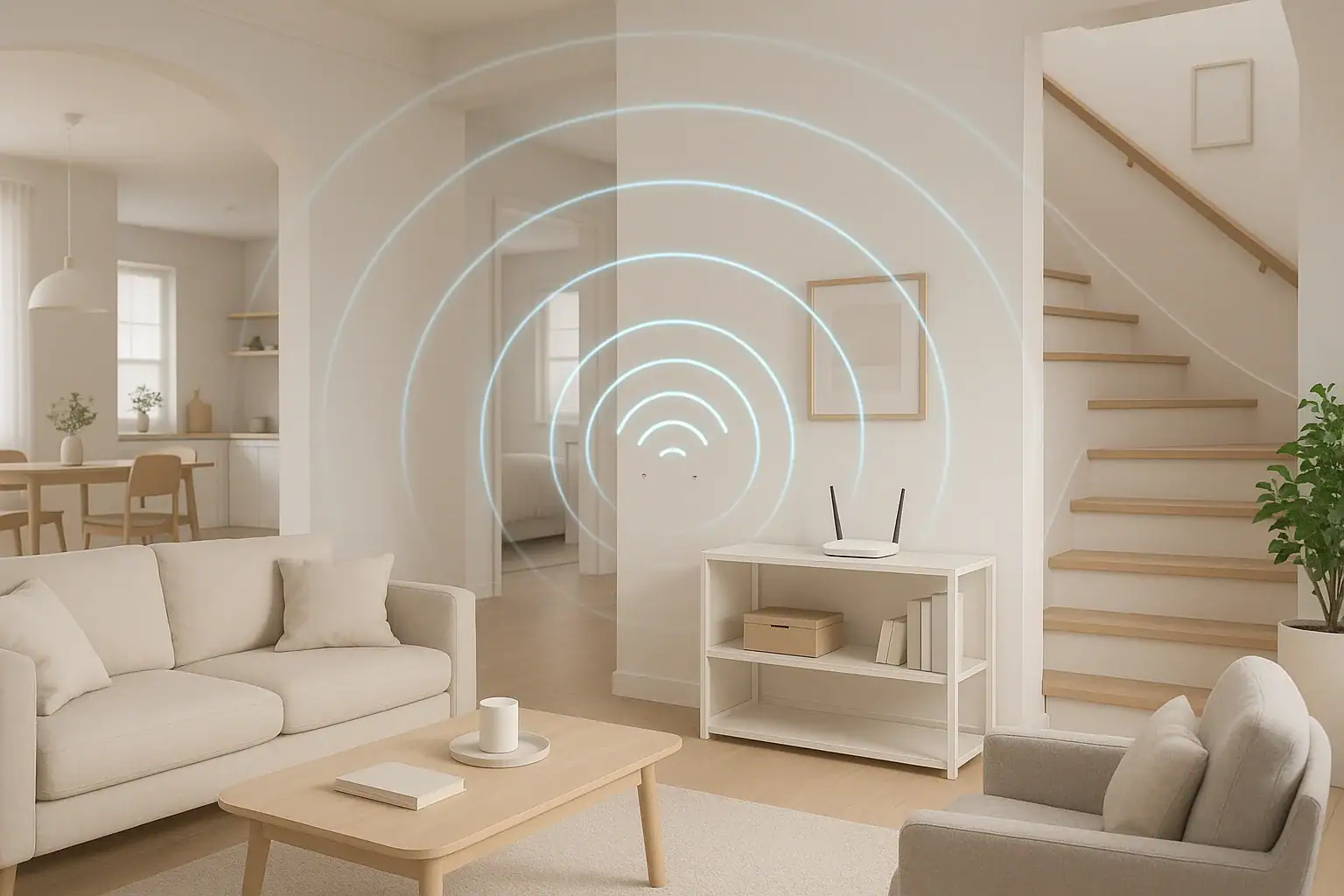
Before spending money on more gadgets, it is worth asking a simple question: is your router in the right place? In many homes, slow or spotty WiFi has less to do with the internet plan and more to do with where the router sits, what surrounds it, and how the signal has to travel. With a few practical changes, you can often get faster, more reliable WiFi using the equipment you already own. This guide walks you through how WiFi signals behave, the most common placement mistakes, and step-by-step strategies to position your router for better coverage, all without adding extra devices. You will also learn how to work around tricky layouts, multi-story homes, and interference from walls, appliances, and neighbors.
Why Router Placement Matters More Than You Think
WiFi uses radio waves, and those waves behave a lot like light and sound. They spread out from the router, bounce off surfaces, and weaken as they pass through walls and objects. Where you put the router shapes how those waves move around your home.
Good placement can:
- Increase signal strength in rooms where you actually use your devices
- Reduce dead zones and buffering during streaming or video calls
- Improve speeds on phones, laptops, and smart home devices
- Help your network handle more devices at the same time
Because placement is free to adjust, it should be the first thing you optimize before considering new hardware.
Understand How WiFi Travels Through Your Home
Knowing a few basics about how WiFi works will help you make smarter placement choices.
2.4 GHz vs 5 GHz: Range and Speed
Most home routers broadcast on two main frequency bands: 2.4 gigahertz (GHz) and 5 GHz.
- 2.4 GHz: Travels farther and penetrates walls better, but can be slower and more crowded.
- 5 GHz: Offers higher speeds and less interference, but has a shorter range and struggles more with thick walls and floors.
Good placement helps both bands reach more of your home so devices can choose the best option.
Obstacles That Weaken WiFi Signals
Every object between your router and your device can reduce signal strength. Some materials are much worse than others.
- Very bad for WiFi: Concrete, brick, stone, metal doors, metal studs, fireplaces
- Moderately bad: Thick wood walls, tile, mirrors, large aquariums
- Less harmful: Standard drywall, light furniture, curtains
The more heavy materials the signal has to pass through, the weaker it becomes. This is why routers hidden in closets or behind large objects often perform poorly.
Most Common Router Placement Mistakes
Many homes share the same simple mistakes that hurt WiFi performance. Check if any of these sound familiar.
- Router in a corner or against an exterior wall: Wastes half the signal outside your home.
- Router on the floor: Puts the signal low, where it is easily blocked by furniture and people.
- Router inside a cabinet or closet: Surrounds the signal with wood, doors, and sometimes metal hardware.
- Router next to large appliances: Refrigerators, microwaves, and similar items can block or interfere with the signal.
- Router next to thick walls or fireplace: Dense materials absorb a large portion of the signal.
- Router buried in a tangle of cables: Often ends up on the floor or behind furniture where the signal is trapped.
If your router is in any of these spots, moving it is often the single biggest improvement you can make.
Step-by-Step: Find the Best Spot for Your Router
You do not need special tools to improve router placement. Use this simple process to find a better location in almost any home.
1. Map Where You Actually Use WiFi
First, think about where you need strong WiFi the most. Common high-priority areas include:
- Living room or family room for streaming
- Home office for video calls and work
- Bedrooms where you use phones or tablets at night
- Kitchen if you use smart displays or speakers
Mark these rooms mentally or on a quick sketch of your floor plan. Your goal is to place the router so the signal reaches these areas as directly as possible.
2. Aim for a Central, Open Location
In most homes, the best starting point is a central location on the main floor.
- Choose a spot roughly in the middle of your home, not at one far end.
- Place it in an open area, not inside furniture or behind a TV.
- Keep a few feet of space around the router when possible.
If the internet connection enters at one end of the house, you may be able to run a longer Ethernet cable from the wall jack to a more central location. This single change can dramatically improve coverage.
3. Raise the Router to a Better Height
WiFi signals spread outward and slightly downward from the router. Placing the router higher often helps the signal clear furniture and reach more rooms.
- Aim for about chest or eye level on a shelf or wall mount.
- Avoid putting the router on the floor or under a desk.
- Keep it away from the very top of a tall cabinet if the ceiling is low, so the signal is not trapped.
In multi-story homes, placing the router higher on the main floor can also help the signal reach the floor above.
4. Keep Distance from Interference Sources
Certain household items can interfere with WiFi or block it more than you might expect. Try to keep the router several feet away from:
- Microwave ovens
- Large refrigerators and metal appliances
- Cordless phone bases and baby monitors
- Thick metal filing cabinets or safes
- Fish tanks and large mirrors
Even moving the router a few feet away from these items can reduce interference and improve stability.
5. Position the Antennas Correctly
If your router has adjustable antennas, their direction matters.
- For one-story homes, try pointing antennas mostly straight up for wide horizontal coverage.
- For two-story homes, angle one antenna vertically and one horizontally to help the signal travel between floors.
- Avoid pointing antennas directly at thick walls or large metal objects.
Small adjustments can change how the signal spreads, so it is worth experimenting.
Optimizing Router Placement in Different Home Layouts
Every home is different. Use these tips to adapt the general rules to your specific layout without adding extra equipment.
Small Apartments and Condos
In smaller spaces, the challenge is often interference from neighbors rather than distance.
- Place the router away from shared walls when possible.
- Avoid tucking it into a media cabinet under the TV.
- Keep it off the floor and away from large metal items like radiators.
- If you work from home, favor a location closer to your desk than to unused corners.
Two-Story Homes
For most two-story homes, the best spot is on the first floor, roughly under the center of the second floor.
- Place the router on a shelf or wall mount at about shoulder height or higher.
- Avoid putting it in a basement unless most of your devices are there.
- If bedrooms are upstairs, place the router closer to the area beneath them.
- Angle at least one antenna to help the signal move vertically between floors.
Long, Narrow Homes
In homes that are long and narrow, placing the router at one end leaves the far end weak.
- Try to place the router near the center along the long axis of the home.
- If the internet connection enters at one end, use a longer Ethernet cable to bring the router toward the middle.
- Prioritize the rooms where you spend the most time online, even if the router cannot be perfectly centered.
Homes with Thick Walls or Older Construction
Older homes or those with plaster, brick, or stone walls can be tough for WiFi.
- Avoid placing the router directly behind or beside the thickest walls.
- Look for doorways and hallways that give the signal a clearer path.
- Place the router near an open stairwell if it can help the signal travel between floors.
- Keep the router in the same room as your most demanding devices when possible.
Fine-Tune Placement Using Simple Tests
Once you have chosen a better location, test and tweak it. You can do this with tools you already have.
Use Your Phone to Check Signal Strength
You can use your phone as a basic signal meter.
- Connect to your WiFi network.
- Walk to different rooms where you use the internet.
- Watch the WiFi icon and note where it drops to one or two bars.
- Run a simple internet speed test in a few key rooms to compare performance.
If certain rooms are much weaker than others, adjust the router location slightly toward those areas and test again.
Test at Different Times of Day
Network performance can change throughout the day due to interference and congestion.
- Test during busy evening hours when many neighbors are online.
- Test during the day if you work from home and rely on video calls.
- Note whether certain rooms struggle more at specific times.
If performance drops only at certain times, interference from nearby networks may be a factor, and placement away from shared walls can help.
Additional Simple Tweaks That Help WiFi Performance
Beyond placement, a few small changes can help your existing router perform its best without adding new devices.
Reduce Physical Clutter Around the Router
Even if the router is in a good spot, clutter can block or scatter the signal.
- Clear away stacks of books, boxes, or dense decorations near the router.
- Avoid surrounding it with electronics that generate heat.
- Give the router a few inches of space on all sides when possible.
Limit Competing Wireless Devices Nearby
Devices that also use radio signals can compete with WiFi, especially on the 2.4 GHz band.
- Keep cordless phone bases and baby monitors away from the router.
- Do not stack wireless speakers or hubs directly on top of it.
- If possible, move smart home hubs a short distance away.
Use Wired Connections for Stationary Devices
Connecting a few devices with cables can free up wireless capacity for everything else.
- Use Ethernet for desktop computers, game consoles, or streaming boxes near the router.
- This reduces wireless traffic and can improve WiFi performance for mobile devices.
This approach does not add extra wireless devices; it simply shifts some traffic off WiFi to make more room for other connections.
Smart Home and Safety Considerations
Router placement affects not only speed but also how well your smart home and safety devices work.
- Smart cameras and doorbells: Need consistent WiFi near entry points. Place the router where it can reach exterior doors and nearby windows.
- Smart locks and sensors: Often sit at the edges of your home. Avoid placing the router at the opposite far corner.
- Voice assistants and smart displays: Benefit from strong, low-latency connections for quick responses.
When choosing a router location, think about these devices as well as your phones and laptops. A balanced placement supports both everyday use and home safety systems.
When You Have Done All You Can with Placement
Optimizing placement is the best first step because it is free and often very effective. However, there are limits.
Even with ideal placement, you may still see issues if:
- Your home is very large or has many thick walls and floors
- You have dozens of devices all active at once
- Your internet plan is much slower than your usage demands
- Your router is very old and cannot handle modern speeds
In these cases, better placement will still help, but there may be a ceiling on performance. If you eventually decide to upgrade equipment, you will already know the best location for any new router.
Simple Checklist for Better WiFi Without Extra Devices
Use this quick checklist to review your setup:
- Is the router in a central location, not in a corner or at one far end of the home?
- Is it in an open area, not inside a cabinet or behind a TV?
- Is it raised off the floor to about chest or eye level?
- Is it several feet away from large appliances, microwaves, and thick metal objects?
- Are antennas positioned vertically and, in multi-story homes, at mixed angles?
- Have you tested signal strength in your most-used rooms and adjusted placement?
- Is clutter cleared away from around the router?
- Are a few stationary devices connected with cables to reduce wireless load?
If you can answer yes to most of these questions, you have likely done everything practical to get better WiFi from your current setup without adding extra devices.
 How to Set Up a Secure Home WiFi Guest Network for Smart Devices
 Security Camera Placement Without Blind Spots: A Practical Homeowner’s Guide
 How to Keep Security Camera Footage Private Inside Your Home