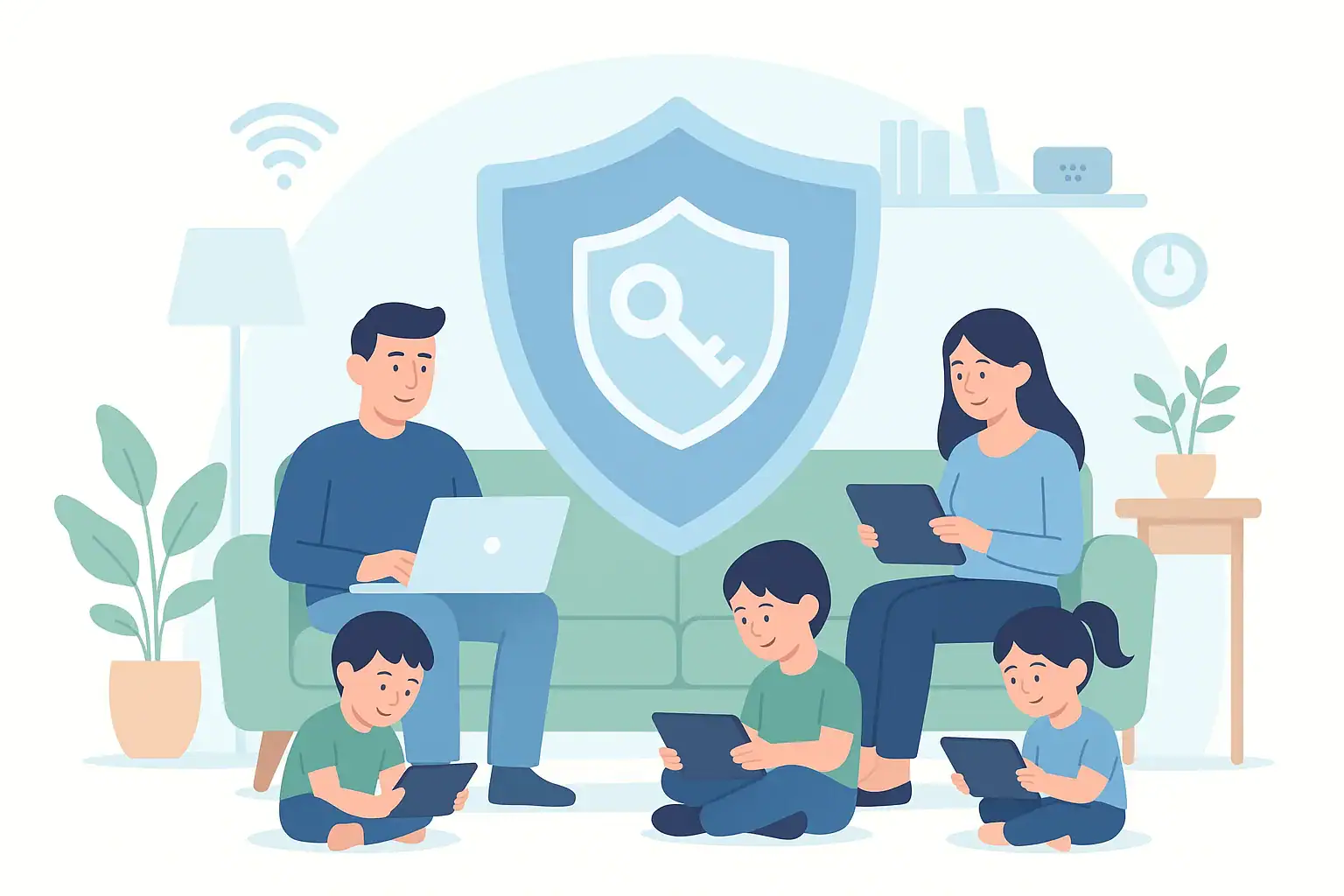
Managing passwords at home can feel overwhelming. Every family member has multiple accounts for school, work, streaming, shopping, and smart home devices. Many people end up reusing the same simple password everywhere, or writing them on sticky notes and notepads. That might feel convenient, but it leaves your family’s information and home network exposed to unnecessary risk.
A password manager is one of the easiest tools you can use to improve security for your whole household. It stores your passwords in one secure place, helps you create strong and unique logins, and can even fill them in automatically. You do not need to be highly technical to use one. With a few simple habits, you can protect your family’s accounts, teach kids good digital hygiene, and make your smart home safer and easier to use.
This guide explains the basics of password managers for families at home: how they work, how to set one up, how to use it with kids and teens, and how to connect it with your smart home and safety routines.
Why Families Need a Password Manager at Home
Households today rely on dozens of online accounts and connected devices. Without a system, it is almost impossible to keep everything secure and organized. A password manager helps your family:
- Reduce password reuse: Use a different strong password for every account instead of repeating the same one.
- Avoid weak passwords: Replace short, easy-to-guess passwords with long, complex ones.
- Share logins safely: Give family members access to shared accounts without texting or writing down passwords.
- Save time: Auto-fill usernames and passwords on phones, tablets, and computers.
- Prepare for emergencies: Make sure a trusted adult can access important accounts if something happens to the primary account owner.
For families with smart locks, cameras, thermostats, and other connected devices, a password manager is a key part of home safety. If one account is compromised, it can affect the security of your entire home network.
How a Password Manager Works in Simple Terms
A password manager is like a secure digital vault for your logins. You unlock that vault with one strong master password. Once you are logged in, the manager can store, generate, and fill passwords for you.
Core features to understand
- Encrypted storage: Your passwords are stored in encrypted form, meaning they are scrambled and unreadable to anyone without your master password.
- Master password: The one password you must remember. It should be long, unique, and never reused anywhere else.
- Password generator: A built-in tool that creates strong, random passwords for new accounts.
- Auto-fill and auto-save: The manager can recognize login pages, fill in your credentials, and offer to save new logins.
- Multi-device sync: Your vault can sync across phones, tablets, and computers so you have your logins wherever you need them.
Once you understand these basics, you can start building your family’s password system around them.
Choosing a Password Manager for Your Family
There are many password managers available. While this guide does not recommend specific products, it can help you know what to look for when choosing one for your household.
Key features for families
- Family or household plans: Look for options that allow multiple users under one subscription, with separate vaults for each person.
- Shared vaults or folders: The ability to create shared spaces for common accounts, such as streaming services, smart home apps, and household bills.
- Child or teen accounts: Options that let younger users have their own logins while giving parents some oversight.
- Cross-platform support: Works on the devices your family uses: iOS, Android, Windows, macOS, and common web browsers.
- Two-factor authentication support: Can store and help manage one-time codes for extra security.
- Emergency access: A way to grant access to another trusted adult if the main account holder is unavailable.
Before you decide, list the devices in your home and the people who will use the manager. Make sure the option you choose fits your actual family setup.
Step-by-Step: Setting Up a Password Manager at Home
Setting up a password manager for a family is easier if you follow a clear process. You can do this in a weekend afternoon with some planning.
1. Create the main family account
- Choose the password manager that best fits your needs.
- Create a main account using an email address that a responsible adult checks regularly.
- Set up billing, if needed, under that adult’s name.
2. Choose a strong master password
Your master password is the key to your entire vault. Treat it like the front door key to your digital home.
Tips for a strong master password:
- Use at least 16 characters.
- Create a passphrase made of several random words, plus numbers or symbols.
- Avoid names, birthdays, addresses, or common phrases.
- Do not reuse a password from any other account.
Write your master password down once and store it in a secure, offline place such as a home safe or a locked drawer. Do not keep it in a notes app or email.
3. Turn on two-factor authentication
Two-factor authentication adds another layer of protection to your password manager. After entering your master password, you must also enter a code from a text message, app, or hardware key.
Steps to enable it:
- Open your password manager’s security settings.
- Find the two-factor or multi-factor authentication section.
- Follow the prompts to connect a phone number or authenticator app.
- Store backup codes in the same secure place as your written master password.
4. Install apps and browser extensions
To make the manager useful for your family, install it everywhere you log in:
- On each parent’s phone and tablet
- On shared family computers
- On older kids’ and teens’ devices, if they will use it
- In web browsers you commonly use at home
Log in to the password manager on each device so your vault is available when needed.
5. Import or add your first passwords
Many people start by adding the most important accounts first, then gradually adding the rest.
Start with:
- Email accounts for each adult
- Online banking and credit card accounts
- Home internet and router login
- Smart home hubs and device accounts
- Cloud storage and photo backup services
As you log in to other sites over the next few weeks, let the password manager save each new login. Over time, your vault will become complete.
Organizing Logins for a Household
Once your passwords are stored, organizing them makes daily life easier. Think of your vault like a set of labeled drawers instead of a junk drawer full of random items.
Use folders or tags
Create simple categories that match your real life. Examples include:
- Household bills (utilities, insurance, internet)
- Smart home and security (locks, cameras, thermostats, alarms)
- Kids and school (learning portals, school communication, activities)
- Entertainment (streaming, music, gaming)
- Shopping (online stores, delivery services)
- Health (patient portals, pharmacy accounts)
Assign each login to one or more categories so you can find it quickly.
Set up shared and private vaults
Most family-friendly password managers allow shared and private spaces.
- Shared vaults: For accounts that multiple people use, such as streaming services, smart home apps, or household bills.
- Private vaults: For personal accounts like individual email, social media, or work-related logins.
Decide which accounts belong in each category and set them up accordingly. This keeps shared information accessible while respecting privacy.
Using a Password Manager with Kids and Teens
A password manager is not only a security tool; it is also a teaching tool. It helps kids and teens learn healthy online habits early.
When to introduce a password manager to kids
Consider introducing a password manager when your child:
- Has their own tablet, phone, or computer
- Uses school portals or learning apps that require logins
- Starts creating personal accounts with your permission, such as gaming or hobby sites
How to explain it in kid-friendly language
You can describe a password manager to kids as a “secret code notebook” that lives on the computer and is locked with one special passphrase. Make it clear that:
- Passwords are like toothbrushes: they should not be shared with friends.
- Long, unusual passwords are better than short, simple ones.
- It is okay if they cannot remember every password, because the manager remembers for them.
Guidelines for kids and teens using a password manager
Set simple, clear rules:
- They must ask permission before creating new accounts.
- All new accounts should be saved in the password manager.
- They should not turn off auto-lock or security settings.
- They should tell a parent if they think an account has been hacked.
For younger kids, you may want to keep their vault under a parent’s account and manage it together. For teens, consider giving them more control while keeping emergency access options in place.
Connecting Password Management to Smart Home Safety
Smart home devices are convenient, but they also add new entry points to your home network. A password manager helps you secure these devices without making them harder to use.
Accounts to secure with a password manager
Make sure these smart home and safety-related accounts are stored in your manager and protected with strong, unique passwords:
- Home router and Wi-Fi network
- Smart lock apps and access codes
- Security camera systems and doorbell cameras
- Smart thermostat and climate control systems
- Smart lighting hubs and control apps
- Voice assistants and home automation hubs
Use the password generator to create long, random passwords for each of these accounts. Do not reuse the same password across multiple devices or services.
Limit who has access to critical logins
Not every family member needs access to every smart home account. For example:
- Parents or guardians should have full access to router, security systems, and smart locks.
- Older teens might have access to climate control and lighting apps.
- Younger kids can use voice commands or shared household profiles without direct access to core accounts.
Use shared vaults carefully, and review who can access sensitive accounts at least a few times a year.
Daily Habits to Keep Passwords Safe
A password manager is powerful, but it works best when combined with good daily habits. These do not need to be complicated.
Simple family rules
- Never reuse the same password on more than one site.
- Always let the password manager create new passwords for important accounts.
- Do not share passwords through text messages, email, or chat.
- Lock devices when not in use, especially shared computers.
- Sign out of the password manager on devices that are not yours.
Regular checkups
Schedule a short “digital checkup” every few months. During this time, you can:
- Review shared accounts and who has access
- Update passwords for important accounts like banking and email
- Remove old accounts you no longer use
- Check that two-factor authentication is turned on where available
These small steps help keep your family’s digital life organized and secure over the long term.
Handling Emergencies and Backup Access
Part of home safety is planning for emergencies. That includes digital emergencies, such as a lost phone, a forgotten master password, or a situation where one adult needs to access another adult’s accounts for urgent reasons.
Set up emergency access
Many password managers offer an emergency or trusted contact feature. This allows a designated person to request access to your vault if needed. You can approve that access or set it to activate after a waiting period.
At minimum, consider these steps:
- Store a written copy of your master password in a secure place at home.
- Tell a trusted adult where that information is stored.
- Keep backup codes for two-factor authentication with your important documents.
Lost device plan
Discuss what your family will do if a phone, tablet, or laptop is lost or stolen:
- Use “find my device” tools if available.
- Remotely sign out of your password manager on that device.
- Change passwords for critical accounts such as email and banking.
Because your passwords are stored in the manager, you can update them quickly from another device.
Getting Your Family On Board
Even the best system will not work if no one uses it. The key to success is making the password manager feel like a helpful tool, not an extra chore.
Tips to encourage adoption:
- Start with pain points: Show how the manager eliminates the frustration of forgotten passwords and repeated reset emails.
- Make it part of setup: When anyone in the family creates a new account, saving it to the manager is simply part of the process.
- Keep instructions simple: For non-technical family members, focus on just two steps: open the manager and click the login you need.
- Celebrate small wins: Notice when someone uses a strong, manager-generated password instead of reusing an old one.
Next Steps for a More Secure Home
A password manager is one of the most effective tools you can add to your home safety plan. It helps your family protect online accounts, secure smart home devices, and build healthy digital habits. Once you have it in place, you can continue strengthening your home’s security by:
- Reviewing privacy and security settings on major accounts
- Teaching kids how to spot phishing emails and scam messages
- Keeping your devices and apps updated with the latest security patches
- Using guest networks for visitors and less-trusted devices
By taking a few organized steps now, you can simplify life for your family and make your connected home safer and more resilient for years to come.
 Outlet Overload Signs and Safe Power Strip Use at Home
 How to Test a Smoke Alarm Safely: Simple Checklist
 GFCI Outlet Will Not Reset: Simple Checks and When to Call Help