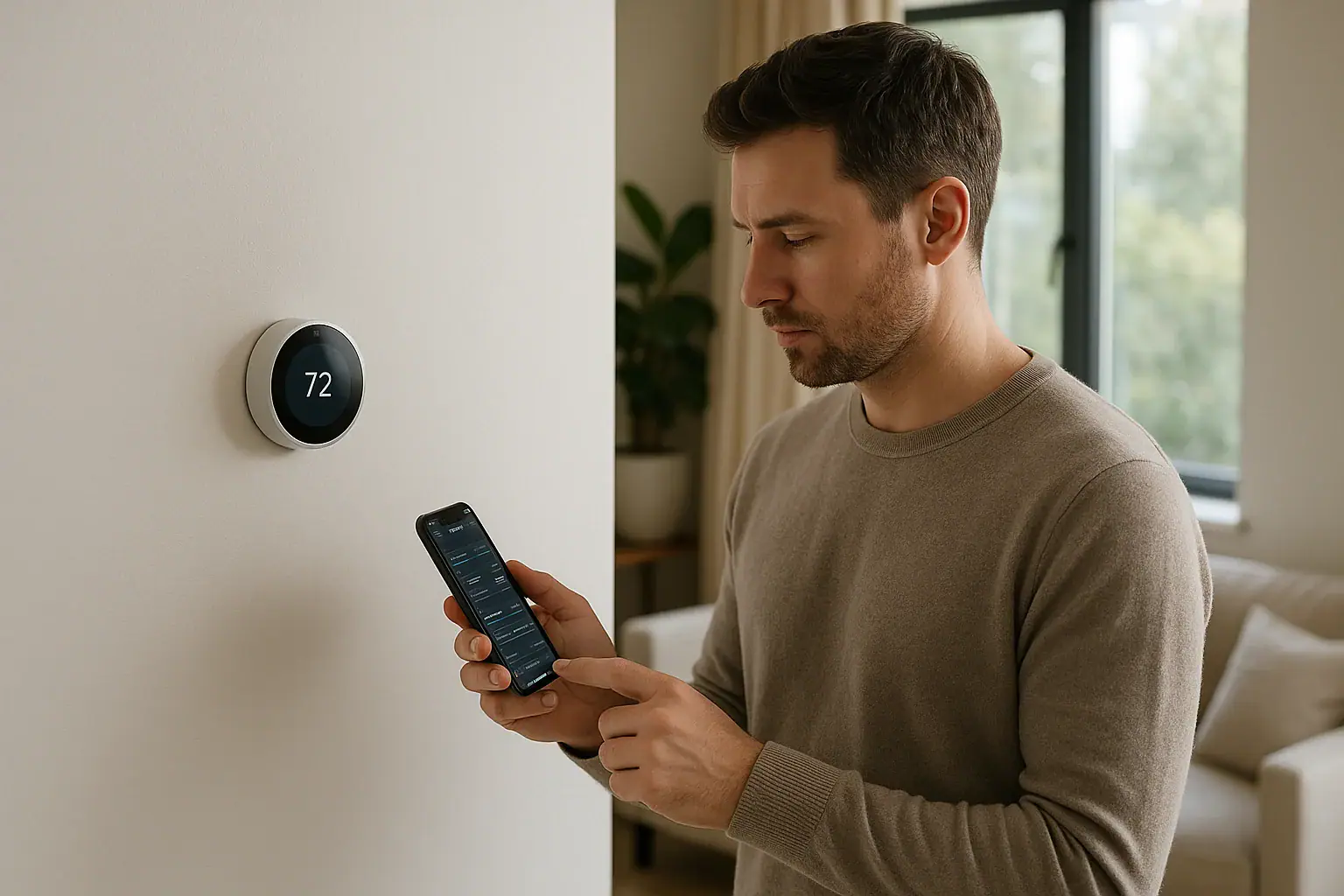
Quick answer: To reset a smart thermostat safely, identify the exact model and consult its current manual first. Save accessible HVAC and account settings, try the manufacturer-approved restart before a destructive reset, and complete setup again after a factory reset. Reset names, menus, and data consequences differ by model.
How to reset a smart thermostat: start with the exact model
Find the exact model in the thermostat’s About screen, app, rear label, or manual before changing anything. Reset labels, button sequences, and data consequences are not universal. Similar-looking thermostats can have different menus and different equipment-setup requirements.
A restart is usually the lower-consequence place to begin. Google’s Nest guidance says a restart keeps settings and may help with a frozen display, connection trouble, or abnormal operation. A factory reset can be much more consequential: Amazon states that a full reset of its Smart Thermostat deletes thermostat data, including HVAC configuration and device settings.
If the display is blank after a power outage, do not assume a reset is the right response. See what to check when a smart thermostat is blank after a power outage before erasing settings.
Choose a restart, targeted reset, or factory reset
Use the narrowest documented option that fits the problem. Depending on the model, separate menu choices may cover restarting, changing a network, clearing a schedule, disconnecting an account, or erasing settings.
- Restart or reboot: Reloads the thermostat without intentionally erasing its settings on models that document that behavior.
- Network reset: May clear network information while leaving equipment settings in place. Confirm the effect in the model manual.
- Schedule reset: May clear programmed or learned schedule information without resetting the entire thermostat.
- Account or registration change: May disconnect the thermostat from an owner or home account. It is not necessarily the same as local erasure or cloud-data deletion.
- Factory reset or Reset All: Returns some or all settings to an original state. It may remove the HVAC configuration needed for correct operation.
Amazon documents an escalation from restart to partial reset and then full factory reset for its own Smart Thermostat. That sequence is not a universal procedure; follow the instructions for the exact thermostat in front of you.
Match the symptom to the least destructive option
| Symptom or task | First option to consider | Avoid or do next |
|---|---|---|
| Frozen display or temporary app problem | Use the manufacturer-approved restart or reboot. | Avoid a factory reset unless the manufacturer directs it. |
| Thermostat works locally but appears offline | Check the router, internet service, app status, and thermostat network status. Then use a documented restart or network-only process. | Do not erase HVAC setup just to reconnect Wi-Fi. |
| Schedule behaves unexpectedly | Review active holds, schedules, occupancy features, automations, and utility events. Use a schedule-only option if the model offers one. | Do not select Reset All for a schedule issue unless directed. |
| New router or Wi-Fi credentials | Use the model’s documented change-network process or network reset. | Do not assume a factory reset is required. |
| Home sale or ownership transfer | Follow the manufacturer’s ownership-transfer instructions and review household access and integrations separately. | Do not assume removing registration erases all local or cloud information. |
| Factory reset already completed | Complete the commissioning checklist before relying on normal operation. | Do not guess at the system type, wiring configuration, or staging. |
| Repeated fault or unsafe equipment behavior | Stop troubleshooting and arrange qualified service. | Do not keep resetting, remove covers, or attempt internal repairs. |
Record these settings before a destructive reset
Take screenshots or photos of accessible screens before choosing a full reset. Do not remove the thermostat from its base or move wires merely to collect information unless the exact manual directs that work and you can follow its safety instructions.
- Exact model and the app or account used to control it
- Visible terminal labels and the configured equipment type
- Conventional or heat-pump selection, stages, and auxiliary or emergency heat settings
- Schedules, holds, vacation settings, occupancy features, and geofencing options
- Remote sensor names, room assignments, and participation settings
- Wi-Fi details, household members, and connected home platforms
- Utility demand-response or energy-program enrollment
Google advises Nest owners to save wire setup, heating-system type, and safety-temperature settings before an all-settings reset. If you cannot confidently identify the erased equipment configuration, consult the installation record or a qualified HVAC technician rather than guessing. For installation and compatibility context, see how to install a smart thermostat safely.
Safe reset steps
- Stop for safety concerns. Do not reset a thermostat or HVAC system that is smoking, sparking, unusually hot, producing a burning odor, presenting a shock risk, or failing to shut off. Seek appropriate emergency or qualified professional help.
- Confirm the exact model. Open the current manufacturer manual or support page for that model. Do not use a reset sequence written for a different thermostat.
- Check for a narrower cause. An offline thermostat may involve the router or internet service. A schedule issue may be caused by a hold, automation, occupancy feature, or utility event. A reset does not diagnose wiring, equipment-power, or mechanical HVAC faults.
- Save accessible configuration details. Record the items in the checklist above before using a destructive option.
- Try the documented restart. Use only the on-screen or button procedure specified for the model. Do not cycle a breaker, remove the faceplate, or hold an unidentified button as general advice.
- Use a targeted reset when available. Choose a network, schedule, registration, or other limited reset only when it directly fits the problem.
- Reserve factory reset for a clear reason. Examples include manufacturer-directed troubleshooting or a transfer process that explicitly requires it. Read the confirmation screen before accepting.
- Recommission the thermostat. Complete the manufacturer setup flow and verify the HVAC configuration before treating the system as restored.
Manufacturer examples are not interchangeable
Google Nest
Nest support distinguishes Restart, Schedule, Network, Account Connection, and All Settings options on supported models. Google says an all-settings reset requires setup and app enrollment again, so select the smallest applicable category.
Amazon Smart Thermostat
Amazon distinguishes restart, partial reset, and full factory reset. Its support guidance says a full reset deletes HVAC configuration and device settings, making saved setup details important before proceeding.
ecobee
ecobee treats registration changes and complete reset as different actions. Its registration guidance warns against using Reset All solely to change registration because HVAC settings may require reconfiguration afterward.
Trane and Resideo
Trane publishes model-dependent reboot guidance and recommends further support when rebooting does not resolve the issue. The Resideo T6 Pro Smart Thermostat manual documents local menu-based reset choices for that product. Neither set of instructions should be applied to another model.
Post-reset commissioning checklist
After a factory reset, work through the model’s setup instructions and review the following before considering the thermostat restored:
- Confirm conventional versus heat-pump equipment, stages, and auxiliary or emergency heat options.
- Compare any displayed terminal information with the saved record. Do not casually move wiring to make a display match.
- Restore date, time zone, temperature limits, and manufacturer-defined protective settings.
- Rebuild schedules, holds, occupancy settings, geofencing, and vacation settings.
- Reconnect the intended Wi-Fi network, account, home, and household members.
- Reconnect remote sensors and review their room assignments and participation settings.
- Review voice assistants, home platforms, security-system links, and other automations.
- Check utility or demand-response enrollment and the program’s current terms separately.
- Use the manufacturer’s commissioning or equipment-test procedure, if provided, to check operation.
- Stop and seek service if operation is reversed, equipment will not stop, an unexpected fault returns, or you cannot verify the configuration.
Accounts, cloud data, and utility programs
A reset at the wall does not necessarily delete information held in a cloud account. ecobee’s privacy notice describes device data and separate account, deregistration, and deletion controls. After a reset or home transfer, review the manufacturer’s account tools, household members, app permissions, integrations, and deletion options individually.
Utility enrollment can also be separate from local thermostat settings. Google’s Rush Hour Rewards terms describe event-related setpoint changes and explain that opting out or deleting the linked account can end enrollment; any incentive effect depends on the particular program. Check the current terms for your own utility program before disconnecting an account or device.
When to stop resetting and call for service
A reset is a configuration step, not a repair for damaged wiring, unstable power, or HVAC equipment faults. Arrange qualified HVAC or electrical service when:
- The same error or reboot loop returns.
- The thermostat loses power repeatedly.
- Heating runs when cooling is requested, or the reverse occurs.
- You cannot verify auxiliary heat, staging, or fan behavior against the equipment documentation.
- The equipment will not start or stop normally.
- You see damaged wiring, discoloration, sparking, smoke, overheating, or moisture.
- You cannot reconstruct erased HVAC configuration with confidence.
Check recall status using the exact model and serial number in current CPSC and manufacturer records. A 2010 CPSC recall involving communication modules inside certain TXU Energy thermostats included instructions not to disable or replace the affected module. That record does not establish a recall for a current thermostat; follow instructions for the exact product involved.
For more connected-device guidance, visit the Smart Home & Safety hub.
 How to Install a Smart Thermostat Safely
 Smart Thermostat Vacation Mode Settings: A Complete Homeowner Guide
 What Is a Smart Thermostat and How Does It Work?