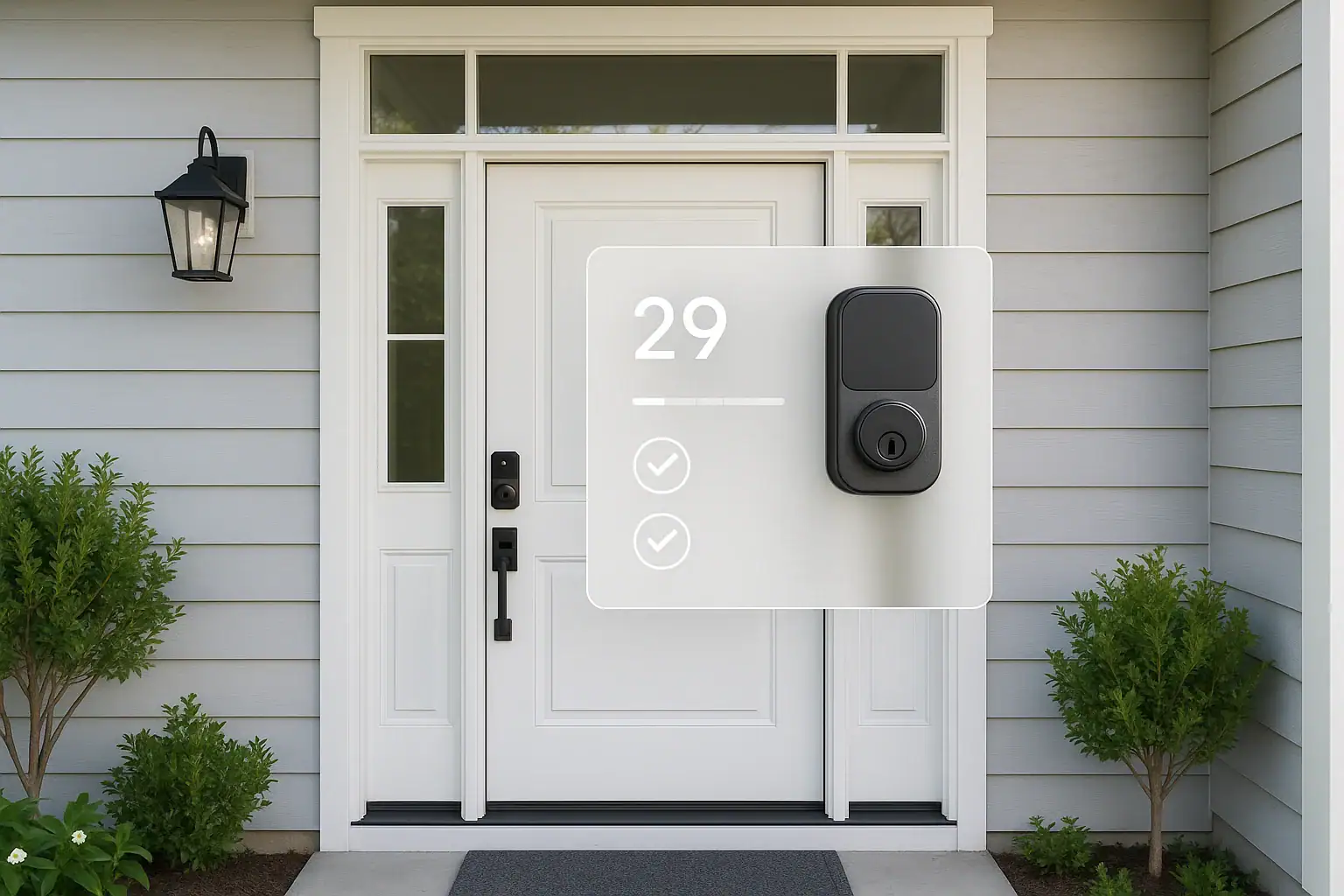
Smart locks are one of the most convenient upgrades you can add to your home, but their auto-lock features can feel a little intimidating. Set the timer too short and you risk locking yourself out while taking out the trash. Set it too long and your front door might sit unlocked longer than you would like. The key is finding safe, realistic default settings that match your daily life, keep your home secure, and still give you some wiggle room for human error.
This guide walks you through how auto-lock works, what timing settings make sense for different households, and which backup options you should always enable. You will learn how to avoid the most common mistakes that lead to lockouts, how to balance convenience with safety, and how to use your smart lock as part of a wider home security plan. Whether you live in a busy household or a quiet apartment, you can set up your smart lock to work with you, not against you.
How Smart Lock Auto-Lock Actually Works
Before you adjust anything, it helps to understand what auto-lock is doing behind the scenes. While details vary by model, most smart locks use a simple countdown timer and a few optional conditions.
Typical auto-lock behavior
Most smart locks follow a pattern similar to this:
- You unlock the door using a code, app, fob, or key.
- The lock starts a countdown timer (for example, 30 seconds, 1 minute, or 5 minutes).
- When the timer ends, the lock checks whether the door is closed (if it has a door sensor).
- If the door is closed, the lock automatically re-locks.
- If the door is open, the lock may wait, retry, or alert you, depending on your settings.
Some models also offer location-based locking, where the lock can re-lock when your phone leaves the area, or schedule-based locking, where the door locks at specific times of day. These are useful extras, but your core protection comes from the basic auto-lock timer.
Why auto-lock is worth using
It can be tempting to turn auto-lock off after one bad lockout, but that usually creates a bigger risk. For most households, auto-lock is worth keeping on because it:
- Protects you from simple forgetfulness, like leaving in a rush.
- Helps keep doors secured at night without relying on routines.
- Improves safety if kids or guests forget to lock behind them.
- Provides a consistent security baseline, even when you are distracted.
The goal is not to disable auto-lock, but to tune it so it fits your lifestyle and reduces the chance of being stuck outside.
Choosing a Safe Auto-Lock Time: Recommended Defaults
The most important decision you will make is how long your smart lock waits before it re-locks. There is no single perfect number, but there are guidelines that work well for most homes.
General timing recommendations
As a starting point, consider these ranges:
- 30–60 seconds: Best for high-traffic doors in busy neighborhoods where security is a top priority and you rarely linger outside.
- 2–3 minutes: A balanced default for most households, giving you time to unload the car or take out trash without constant relocking.
- 5 minutes or longer: Better for doors used mainly from inside spaces like a garage entry, or if you often step outside briefly without your phone or keys.
For many US homes, a 2–3 minute auto-lock timer on the main entry door is a safe, practical default. It keeps your door from sitting unlocked for long, but still gives you a cushion for quick trips just outside.
Adjusting for your household type
Fine-tune your default based on who lives in your home and how you use the door.
Families with kids
- Use 2–3 minutes on main doors so kids have time to come and go without being locked out.
- Enable entry codes for older children who carry no physical keys.
- Turn on notifications so you know when doors are left unlocked or open.
Singles or couples
- If you rarely step outside without your phone, a 1–2 minute timer offers strong security.
- If you often run to the curb, garden, or mailbox, 2–3 minutes is usually more comfortable.
Shared housing or rentals
- Use 1–2 minutes on shared entry doors to protect everyone in the building.
- Give each roommate a unique code so no one is completely locked out.
- Post a simple door use reminder near the entry for guests.
Using Door Sensors to Prevent Bad Auto-Lock Behavior
A door sensor (also called a contact sensor) tells your lock whether the door is actually closed. This small accessory has a big impact on how safe and reliable auto-lock feels.
Why a door sensor matters
Without a sensor, your lock will usually re-lock at the end of the timer, whether the door is fully closed or not. That can lead to:
- A locked deadbolt with the door slightly open.
- False confidence that your home is secure.
- Extra wear on the lock mechanism as it tries to extend into misaligned hardware.
With a sensor, your lock can behave much more intelligently.
Smart defaults when you have a door sensor
If your lock supports a door sensor, use these settings as a starting point:
- Auto-lock after door closes: Enable this so the countdown starts when the door shuts, not when you unlock it.
- Delay after close: Set to 30–60 seconds for front doors, or up to 2 minutes for doors used during unloading or yard work.
- Door left open alerts: Turn on alerts if the door stays open for more than 3–5 minutes.
This combination gives you time to step in and out, but still ensures that a closed door does not remain unlocked by accident.
Smart defaults without a door sensor
If your lock does not use a door sensor, be more conservative:
- Use a slightly longer auto-lock time, such as 2–3 minutes, to avoid locking while the door is still in motion.
- Turn on unlocked door reminders in your app, if available.
- Make a habit of checking the latch when you close the door, especially at night.
Backup Access: Your Safety Net Against Lockouts
Even with great auto-lock settings, mistakes happen. The difference between a minor inconvenience and a major headache is whether you have backup ways to get in. Build in at least two backup options beyond your main method of entry.
Keypad codes and access pins
If your lock has a keypad, treat it as your first line of backup access.
- Create a primary code for each adult in the home.
- Set up a temporary code for trusted visitors, pet sitters, or house cleaners.
- Avoid using obvious patterns like street numbers or birthdays.
- Update or remove codes regularly, especially after guests leave.
Keypad access is especially helpful if you step outside without your phone or keys, since you can still get back in even after auto-lock engages.
Physical key backup
Many smart locks still accept a traditional key. Do not ignore this option.
- Keep at least one physical key in a safe, accessible place inside your home.
- Store a spare key with a trusted neighbor or family member nearby.
- If you use an outdoor key storage box, choose one that is solid, discreet, and well-hidden.
Physical keys are your fail-safe if batteries die, electronics fail, or your phone is lost.
App access and shared accounts
The lock’s mobile app is convenient, but you should not rely on one person’s phone alone.
- Make sure multiple adults in the home have app access.
- Enable remote unlock if your system supports it, so someone can let you in from afar.
- Use strong passwords and, if available, two-factor authentication on your account.
With these backups in place, an unexpected auto-lock event becomes a minor delay instead of an emergency call to a locksmith.
Battery, Power, and Connectivity: Hidden Causes of Lockouts
Auto-lock depends on power and communication. If your lock loses either one at the wrong time, you may find yourself stuck outside. A few simple habits can greatly reduce this risk.
Battery management best practices
Most smart locks are battery powered. To keep them reliable:
- Turn on low-battery alerts in the app and pay attention to them.
- Replace all batteries at the same time to avoid uneven performance.
- Use fresh, high-quality batteries recommended by the manufacturer.
- Consider a calendar reminder to check batteries every 6–12 months.
Some locks can still be operated manually when batteries die, but others may become difficult to move. Staying ahead of battery life is one of the easiest ways to prevent lockouts.
Dealing with Wi-Fi or hub outages
Many smart locks connect to a hub or Wi-Fi network. If that connection fails, auto-lock often still works, but remote control may not.
- Test that you can lock and unlock the door directly at the keypad or thumb turn, even when Wi-Fi is off.
- Do not rely only on voice assistants or cloud services to unlock your door.
- Keep at least one offline method (keypad code or physical key) ready.
By planning for short network outages, you avoid being surprised by a lock that suddenly stops responding to your phone.
Advanced Auto-Lock Features and How to Use Them Safely
Many modern smart locks offer extra automation features beyond a simple countdown timer. These can be powerful tools, but they should be used carefully to avoid unwanted lockouts or security gaps.
Location-based auto-lock and unlock
Some systems can use your phone’s location to lock when you leave and unlock when you arrive. If you enable these features:
- Test them thoroughly during the day before relying on them at night.
- Use location-based locking as a backup, not your only layer of security.
- Be cautious with auto-unlock; consider keeping a keypad code as your primary method of entry.
Location features are helpful for forgetful moments but should not replace a solid auto-lock timer and manual checks.
Scheduled locking and nighttime routines
Schedules can help you build a reliable security habit.
- Set a nightly lock schedule (for example, 10:00 p.m.) as a backup in case someone disables auto-lock temporarily.
- Use door status alerts to notify you if the door is still unlocked after your usual bedtime.
- Combine schedules with a quick physical check before going to sleep.
This layered approach reduces the chance of going to bed with an unlocked door, even on busy days.
Temporary auto-lock changes for special situations
There are times when your usual auto-lock settings do not fit, such as:
- Hosting a party or gathering with frequent guests.
- Moving furniture or appliances in and out.
- Working on projects just outside the front door.
During these events, you can safely adjust settings if you do it thoughtfully:
- Instead of turning auto-lock off completely, extend the timer to 10–15 minutes.
- If you must disable auto-lock, set a phone reminder to turn it back on afterward.
- Use door open alerts so you know if the door is left open too long.
Practical Setup Checklist: Safe Defaults That Work in Real Life
To put everything together, use this simple checklist when you first set up your smart lock or when you revisit your settings.
Step-by-step configuration
- Confirm door alignment
Make sure your door closes smoothly and the deadbolt can extend fully without resistance. Auto-lock works best on a well-aligned door. - Install and test a door sensor (if available)
Check that the app correctly shows when the door is open and closed. - Set your auto-lock timer
Start with 2–3 minutes for the main entry door. Adjust up or down after a week based on your experience. - Enable door-based locking
If your lock offers it, set the timer to start when the door closes, not when it unlocks. - Create backup access methods
Set keypad codes for household members, store a spare key safely, and ensure at least two people have app access. - Turn on alerts
Enable notifications for low battery, door left open, and door left unlocked beyond a certain time. - Test common scenarios
Simulate taking out trash, unloading groceries, and stepping out to the yard to see how auto-lock behaves. - Review settings every few months
As your routines change, revisit your timer, codes, and alerts to keep them aligned with real life.
Balancing Security and Convenience in Your Smart Home
Smart lock auto-lock settings are not just about avoiding lockouts; they are about building a safer, more predictable home. When you choose a realistic auto-lock time, use door sensors wisely, and set up solid backup access, you gain both peace of mind and everyday convenience.
Think of auto-lock as one layer in your overall smart home safety plan. Combine it with good lighting around entrances, clear visibility of your front door, and simple habits like checking doors before bed. With thoughtful defaults and a few minutes of testing, your smart lock can quietly do its job in the background, keeping your home secure without making life harder.
If you would like to explore more ways to improve safety and convenience around your home, you can find additional smart home and safety guides at Signature Home Guide.
 Smart Lock Battery Dead? How to Create a Reliable Backup Access Plan
 How to Set Up a Secure Home WiFi Guest Network for Smart Devices
 GFCI Outlet Will Not Reset: Simple Checks and When to Call Help